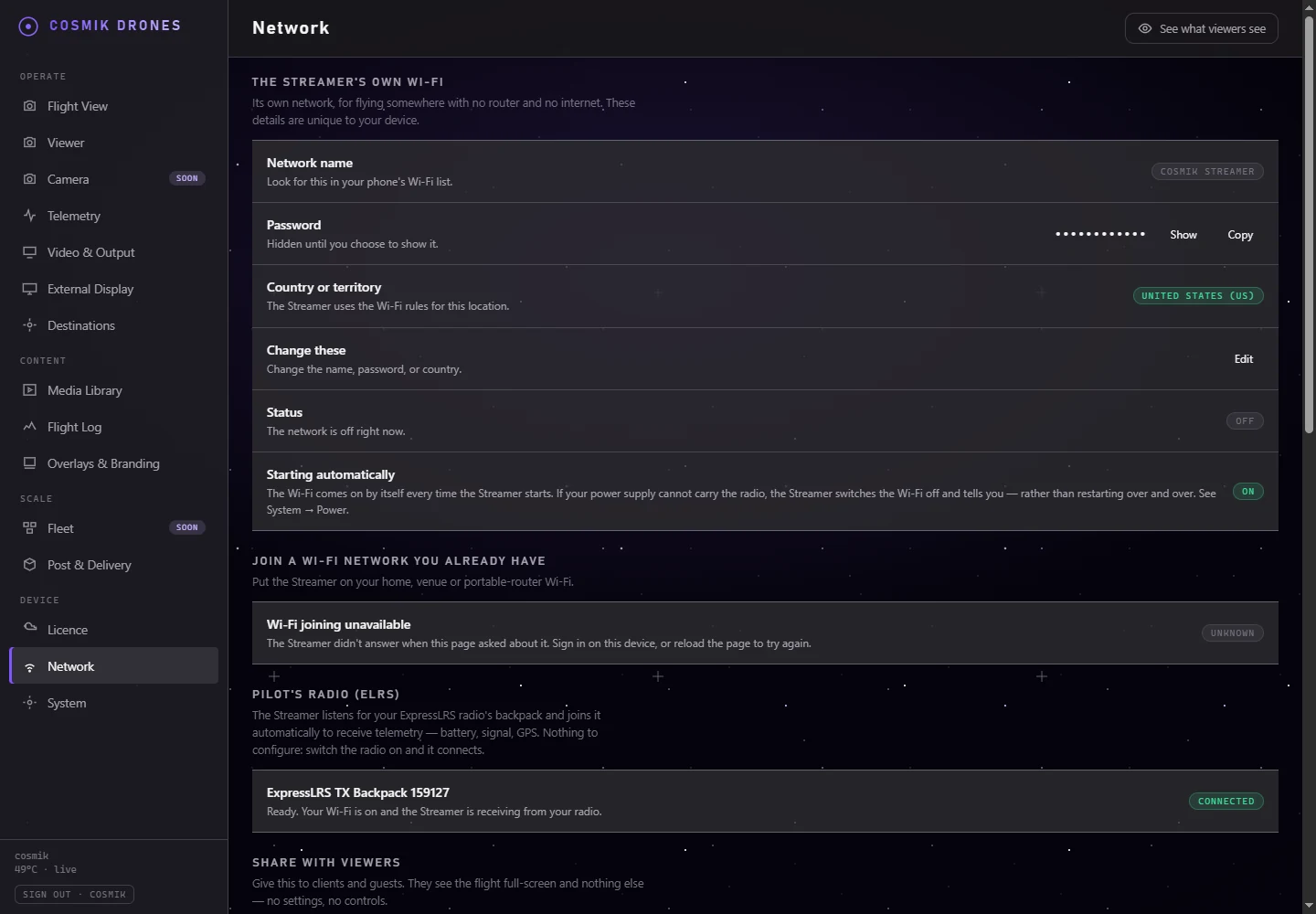
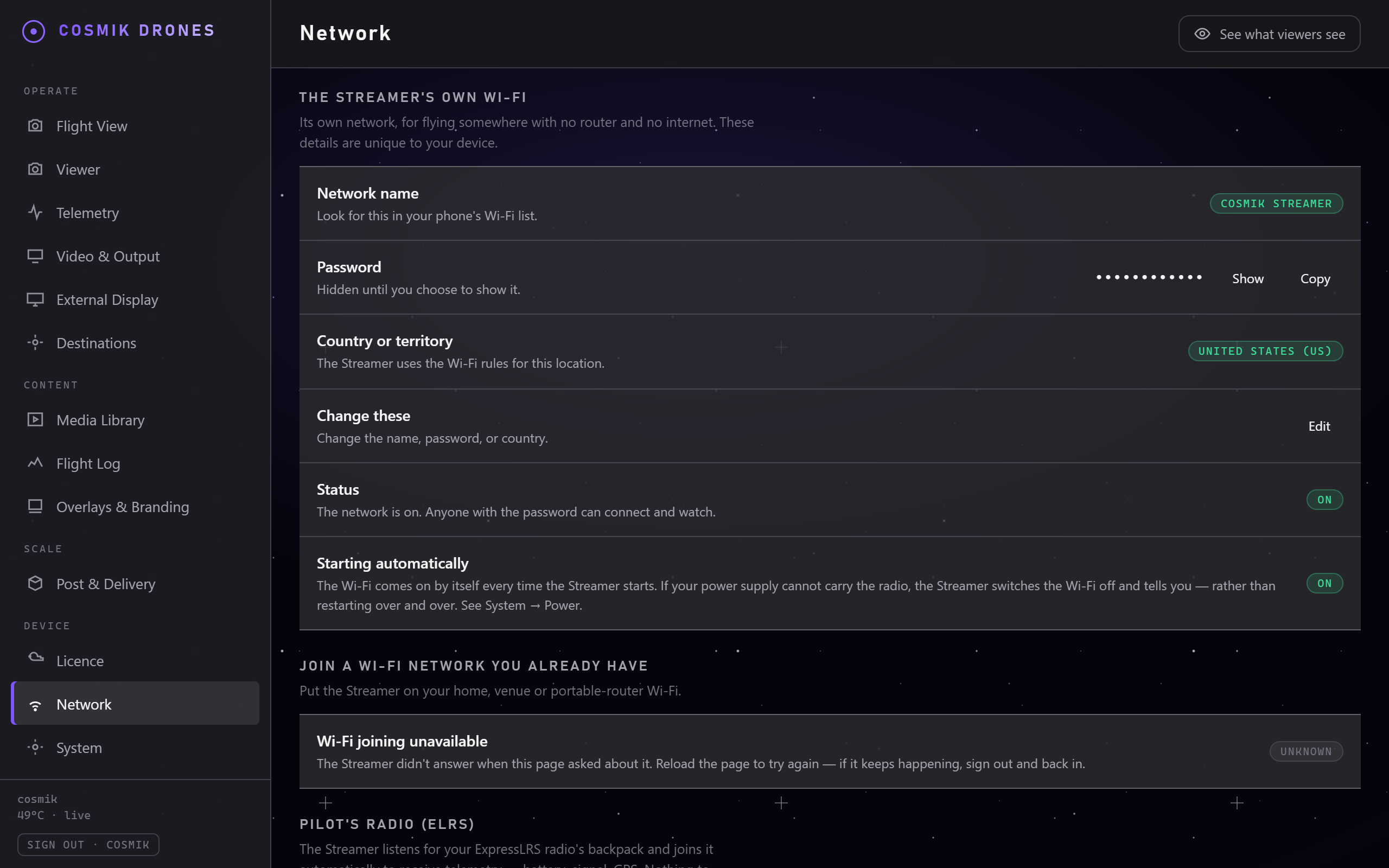
The Network page. This is where the Streamer is told to join a Wi-Fi network of your own.
This is the newest thing in the Streamer, and it has not yet had the months of field use the rest of the guide describes. Everything below is how it behaves; if yours does something different, that is a fault we want to hear about rather than something you should work around.
The Streamer always makes its own Wi-Fi network — that is how a client's phone watches your flight in a field with no router, and it never switches off. That network is covered in Getting Started.
This page is about the other thing: joining a Wi-Fi network you already have. Your house, a venue's, or a portable router you carry.
| The Streamer's own Wi-Fi | A network you already have | |
|---|---|---|
| Who makes it | The Streamer | Your router |
| Where you set it up | Console → Network → The Streamer's own Wi-Fi | Console → Network → Join a Wi-Fi network you already have |
| Is it ever off? | No. It stays on whatever else happens. | Only if you join one. |
| Gives the Streamer internet? | No | Yes, if that network has it |
⚠️ The one thing to know first
While the Streamer is on your Wi-Fi, it cannot receive flight data from your radio.
The Streamer has one Wi-Fi radio, and that radio can be on your Wi-Fi or listening to your ExpressLRS radio — not both at once. Everything else carries on exactly as normal: the live picture, recording, streaming out, and the Streamer's own Wi-Fi.
So the shape of it is:
- At home, between flights — joining is useful. You get the console from your laptop without switching networks, the clock sets itself, updates can arrive, and you can stream to YouTube.
- At a shoot — leave the network first. One tap, and your flight data comes back on its own.
The console says this on the Network page for as long as you are joined, so you do not have to remember it.
Joining a network
- Open Console → Network → Join a Wi-Fi network you already have.
- Tap Look. The Streamer lists what it can see from where it is sitting.
- Tap Choose next to your network, type its password, and tap Join.
That is all. The Streamer remembers it and rejoins by itself every time it starts, so you only do this once per network.
If it says it is waiting
The Streamer has one radio, so its own Wi-Fi and your network must be on the same channel. If they are not, the Streamer's own Wi-Fi has to move — and moving it disconnects everyone on it.
It will never do that while anyone is connected. Instead it waits, and the console tells you how many devices are connected. Disconnect them — including the phone you are reading this on, if you are on the Streamer's Wi-Fi — and it joins within about half a minute. The Streamer's own Wi-Fi comes straight back with the same name and password, so everything reconnects by itself.
If you would rather not disconnect anyone, plug a network cable into the Streamer's socket and use the console over that instead; then nothing is on its Wi-Fi and the join happens immediately.
After the first join there is nothing to wait for again: the Streamer starts on the right channel from then on.
If your network is not in the list
- It may be a 5 GHz network. The Streamer's own Wi-Fi is 2.4 GHz and it has one radio, so it cannot be on 5 GHz. Most routers offer the same network on 2.4 GHz as well — switch that on in the router and it will appear. Networks the Streamer can see but cannot join are listed anyway, with the reason, so you are not left guessing.
- It may be out of range. The Streamer is wherever you left it, not where you are. Move it closer and tap Look again.
- It may be hidden. A network that does not broadcast its name cannot be picked from a list.
If it says it could not join
Almost always the password. Type it again — the Streamer does not shorten or change what you type. If the network has been renamed or switched off, tap Look again and pick it from the list.
Leaving a network
Open Console → Network and tap Leave.
The Streamer stops using that network and starts listening for your ExpressLRS radio again. Its own Wi-Fi is not touched, so nobody watching is interrupted — you can do this with a client mid-flight and they will not notice.
What you can reach it at
Once joined, the Streamer answers on two addresses: its own Wi-Fi, and the one your network gave it. Both are listed under Console → Network → How to reach this Streamer, with the one that never changes at the top.
Your network's address is the convenient one — a laptop can use it without leaving your Wi-Fi. It came from your router, so it can change. The Streamer's own address is always there and is the way back in if anything goes wrong.
See also
- Getting Started — naming the Streamer's own Wi-Fi
- Signal & Telemetry — what flight data is, and why this page turns it off
- Troubleshooting — when something is not where you expect it
Source: /docs/joining-your-wi-fi.md