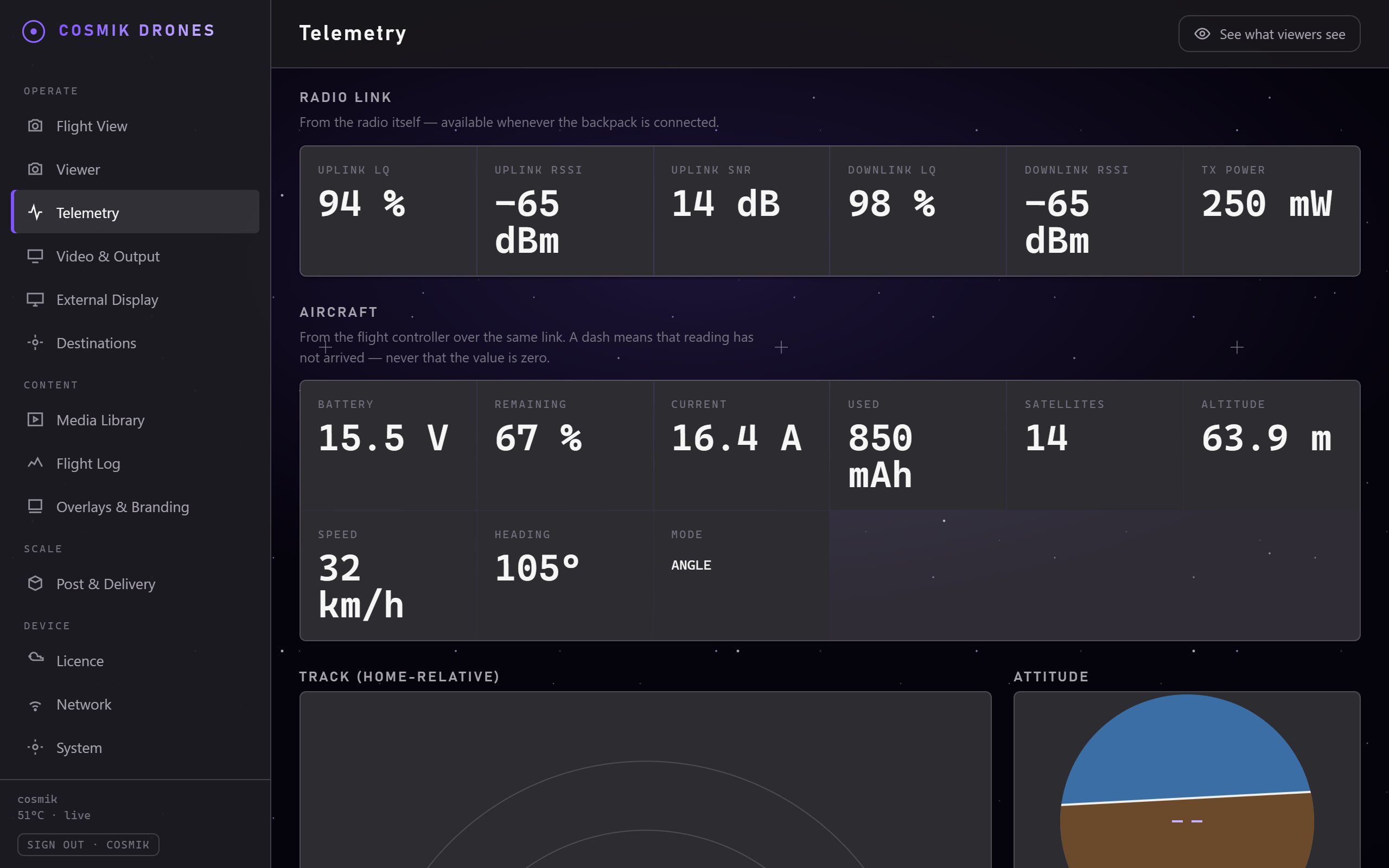
The Telemetry page - link quality, signal and flight figures as they arrive.
Cosmik Streamer can show you how strong your control link is, live, while you fly — and record it. It's genuinely useful information: it tells you whether you're comfortably inside your range or quietly running out of signal.
This is optional. Everything else works without it.
What you'll see today
Once set up, the Telemetry page and the corner of the Live View show:
| Reading | What it means | What's good |
|---|---|---|
| Uplink LQ | Link Quality — the percentage of signals getting through to the drone | 100% is perfect. Below ~70% is worth noticing. |
| Uplink RSSI | How strong the signal is, in dBm. Always negative | Closer to zero is stronger. −40 is excellent, −100 is marginal. |
| Uplink SNR | How clearly the signal stands out from background noise | Higher is better. |
| Downlink LQ / RSSI | The same, for the drone talking back to you | Same rules. |
| TX power | How hard your radio is transmitting, in milliwatts | Higher reaches further, drains faster. |
The one number to watch is Link Quality. If it starts dropping, you're heading toward the edge of your range — turn back before it reaches zero.
Two different sources — and why half the page can be blank
The Telemetry page is split into Radio link and Aircraft, because the readings come from two different places and either can work without the other.
| Group | Comes from | Works when |
|---|---|---|
| Radio link — LQ, RSSI, SNR, TX power | Your radio, over its Wi-Fi backpack | As soon as the backpack is set up (below) |
| Aircraft — battery, GPS, altitude, speed, attitude, flight mode | Your drone's flight controller | Only if the flight controller is set up to send telemetry |
So a full set of signal readings beside a column of dashes is completely normal. It means your radio link is healthy and your flight controller isn't reporting — two separate things.
A dash means "this reading hasn't arrived" — never "the value is zero". We will never show you
0.0 Vfor a battery we can't actually measure. If you see a number, something measured it.
Getting the aircraft readings
Battery, altitude, speed and attitude come from your flight controller over the same radio link. You'll need telemetry enabled on the flight controller, and for battery specifically, a voltage sensor configured — most flight controllers have one built in, but it has to be switched on. This is set up in your flight controller's own configurator, not in Cosmik Streamer; we only display what arrives.
GPS needs a GPS module
Satellites, altitude, speed and heading need a GPS module fitted to the aircraft. Plenty of freestyle quads don't have one, and no amount of configuration will change that — there's simply no sensor to read.
Cosmik Streamer works this out for itself. If your flight controller is reporting other things but never GPS, the page says so plainly instead of telling you to wait for a fix that will never come. Fly an aircraft that does have GPS and the map and satellite count appear on their own, with nothing to switch on.
If your aircraft has a GPS module and you're still getting nothing, the usual cause is that the flight controller can't see its own module — and it's typically three faults at once, two of which are invisible from the GPS tab of your configurator. There's a step-by-step for it in Troubleshooting → No GPS.
Setting it up
You need an ExpressLRS (ELRS) radio — for example a RadioMaster Boxer. Your radio sends its signal information over Wi-Fi, and Cosmik Streamer listens for it.
What you need first
- ELRS firmware version 3.5 or newer on both your radio and your receiver.
- Both on the same major version (a version 4 radio cannot talk to a version 3 receiver).
If you're unsure, check the version on the radio's ELRS screen. If it's older, update it using the ExpressLRS Configurator before continuing.
On your radio
⚠️ Before you start, one rule that will save you a lot of time: do not open the WiFi Connectivity menu at any point. Not to look, not to check. It is a different menu that does a different job, and visiting it once quietly stops telemetry working — see The one menu to stay out of below.
- Open the ExpressLRS tool on your radio (usually the SYS button → Tools → ExpressLRS).
- Find Telem Ratio and set it to Std — anything except Off. If it's off, your radio never receives anything to pass on.
- Roll down to Backpack and press ENTER. You'll get a list starting with Backpack, then DVR Rec, DVR Srt Dly, DVR Stp Dly, HT Enable, HT Start Channel, Telemetry, Version.
- Check the Version line first. If it shows a version number, the backpack is powered and listening, and the next step will reach it. If it's blank, stop — the backpack isn't answering, and changing settings will appear to work while doing nothing at all. Switch the radio off, wait ten seconds, switch it on and look again.
- Roll to Telemetry and press ENTER. The value starts blinking — that's edit mode. Roll until it reads WiFi, then press ENTER again to leave edit mode.
That's the whole radio setup. Telemetry is a value you scroll to, not a button you press — and leaving edit mode is the moment the setting is actually sent to the backpack.
If there's no WiFi option under Backpack → Telemetry, your firmware is too old to support it — update it first.
The one menu to stay out of
There are two menus on the radio with WiFi in the name, and only one of them is the right one:
| Menu | What it's for |
|---|---|
| Backpack → Telemetry → WiFi ✅ | This one. Sends your flight data over Wi-Fi. |
| WiFi Connectivity → Enable Backpack WiFi ❌ | Firmware updates only. Never sends telemetry. |
Picking the wrong one isn't just a step that doesn't work. Opening Enable Backpack WiFi even once switches telemetry off from the next time you power the radio on — and the radio carries on displaying WiFi under Backpack → Telemetry as though everything is fine.
That combination is what makes this worth a section of its own: there is no error message, nothing on the radio looks wrong, and switching the radio off and on again does not fix it — it's what applies it. It is very easy to conclude the Streamer is broken. It isn't, and the recovery takes about a minute.
Fixing it — telemetry stopped and the radio still says WiFi
Do this if telemetry has stopped, or if you've been in WiFi Connectivity at any point.
- Switch the radio fully off. Wait ten seconds. Switch it on.
- Open SYS → ExpressLRS → Backpack.
- Read the Version line. If it's blank, stop and repeat step 1 — nothing below will reach the backpack until that line shows a version.
- Roll to Telemetry, press ENTER, roll to Off, press ENTER.
- Wait five seconds. The backpack restarts itself after a change and needs a moment.
- Roll to Telemetry, press ENTER, roll back to WiFi, press ENTER.
- Wait about thirty seconds, then check Console → Network → Pilot's radio (ELRS).
Setting it to Off and back is the whole trick. The radio only tells the backpack about this setting when you change it, so re-selecting WiFi when it already reads WiFi sends nothing — which is why simply looking at the menu, or restarting the radio, never helps.
Your drone doesn't need to be switched on for any of this. You'll need it on before readings actually appear, but not to make the fix.
From then on, stay out of WiFi Connectivity. It undoes this every single time, silently. If you ever do need it for a firmware update, just run the seven steps above afterwards.
Getting it to Cosmik Streamer
Nothing. That's the whole step.
Your radio now broadcasts its signal data over Wi-Fi, and out in a field it makes its own little network to do it on. Cosmik Streamer looks for that network, joins it by itself, and keeps serving your own Wi-Fi to viewers at the same time. Switch the radio on and it connects.
You can watch it happen: Console → Network → Pilot's radio (ELRS) says Connected with your radio's name, Not found while it's still looking, or Cannot connect if it found your radio but can't reach it — see the next box.
If it says "Cannot connect", your radio and the Streamer are on different Wi-Fi channels. The Streamer has one Wi-Fi radio, so it can be on your channel or on its own — not both at once — and the people watching come first. It will never cut off your viewers to go after flight data. The fix takes a moment: disconnect the phones and tablets from the Streamer's Wi-Fi, wait about half a minute, then join again. With nobody connected, the Streamer moves to your radio's channel by itself. Easier still, switch your radio on before anyone joins the Streamer's Wi-Fi, and the two line up on their own with nothing to do. Console → Network names both channel numbers and what to do about them, so you are never left guessing.
If it says "Off while the Streamer is on your Wi-Fi", you have joined the Streamer to a Wi-Fi network of your own — your house, or a venue's. The Streamer has one Wi-Fi radio, so it can be on that network or listening to your radio, not both. Nothing is broken and nothing is lost: open Console → Network and tap Leave, and flight data comes back on its own. Leaving does not interrupt anyone watching. See Putting the Streamer on Your Own Wi-Fi.
If you're plugged into a router — an Ethernet cable to the Streamer — and you'd rather your radio used that network, point the backpack at it in the radio's own Wi-Fi settings. The Streamer will pick the data up there too. This is optional; in a field you don't need it and there's usually no router anyway.
Either way there is nothing to configure in the app — when data arrives, the readings simply appear.
Checking it's working
Open the Telemetry page.
- "Waiting for telemetry" → nothing is arriving at all. Check the radio settings above, make sure your drone is powered on and connected — with no drone linked, there's nothing to report — and look at Console → Network to see whether the Streamer has found your radio yet.
- Radio link populated, Aircraft all dashes → your radio is working and your flight controller isn't reporting. That's the setup described above, not a fault. The page says as much when it sees this.
- Both populated → you're set. They update several times a second.
Looking at it afterwards
Everything on this page is also written down as you fly and kept, flight by flight. See The Flight Log — where your signal went weak, where the picture dropped, and a button that opens the recording at that exact moment so you can see what you were flying past. It works on every aircraft, with or without GPS, indoors or out.
Coming soon
- Telemetry on the broadcast picture, burned in for viewers.
Source: /docs/telemetry.md