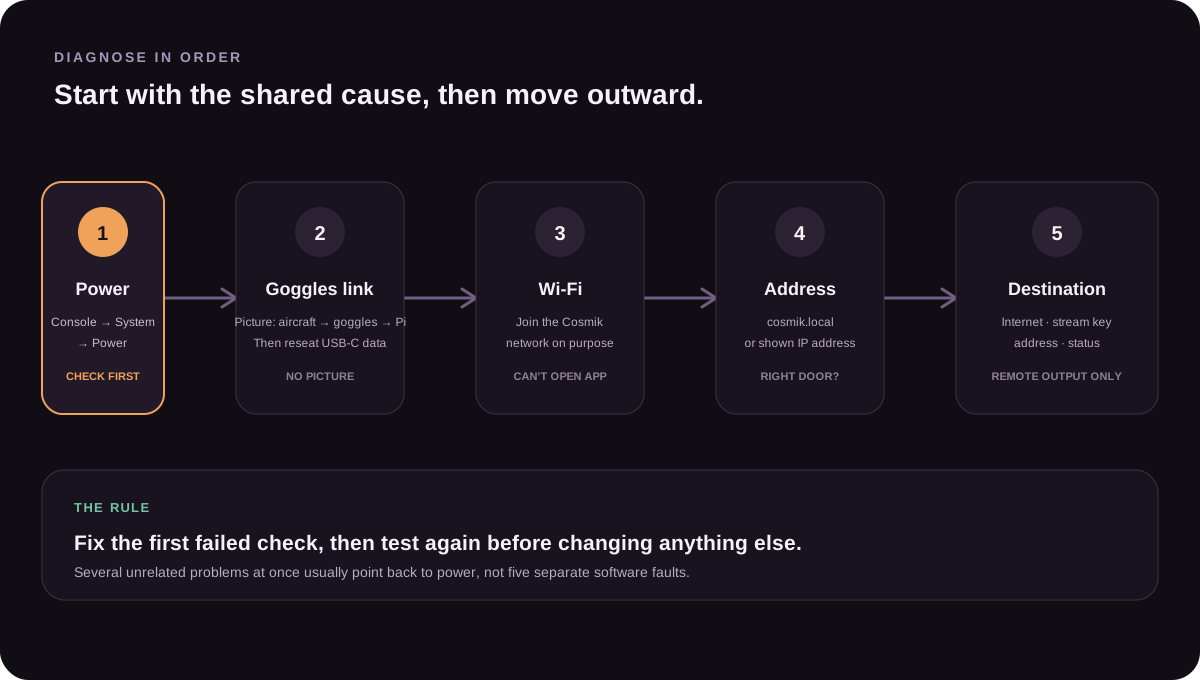
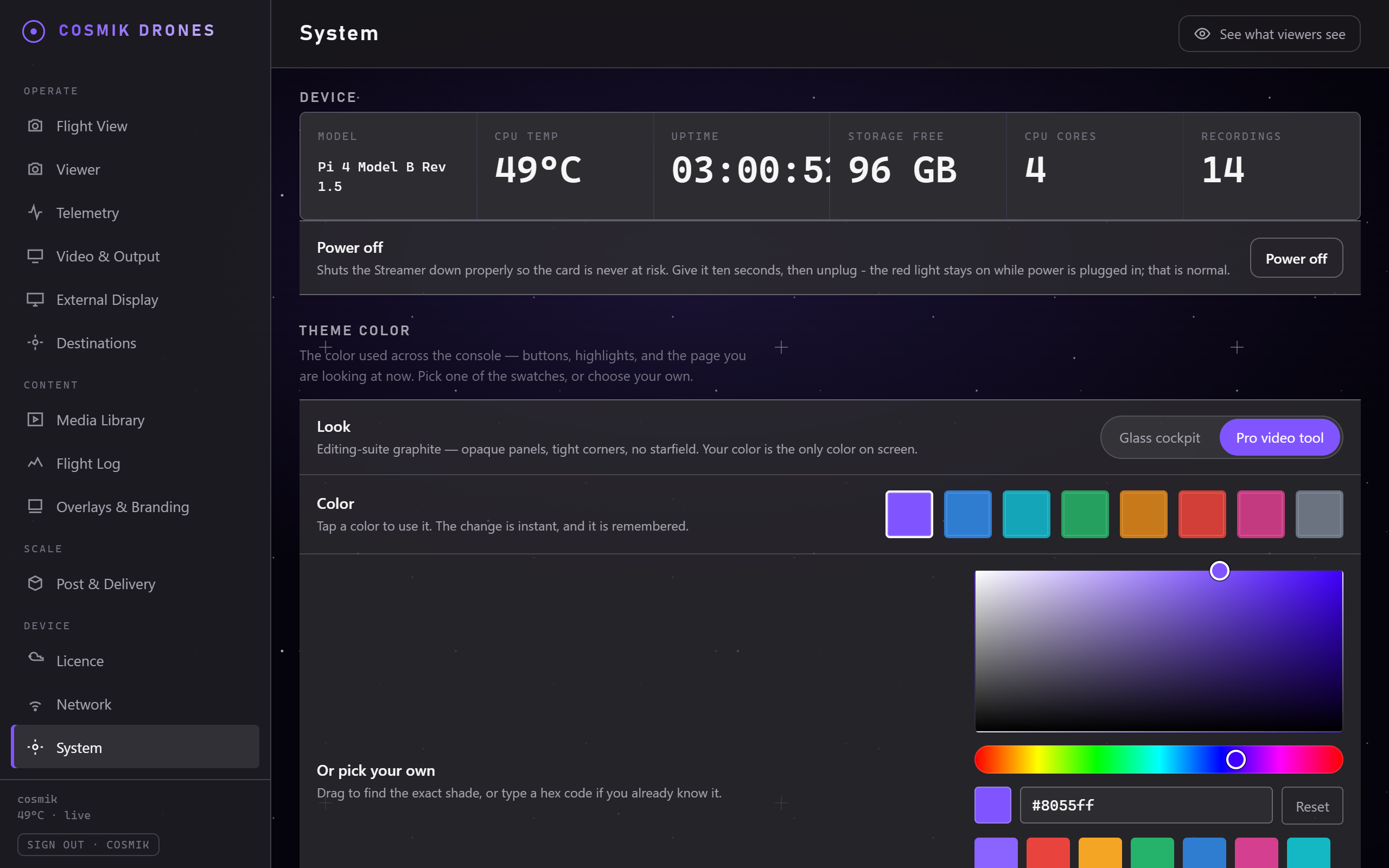
The System page. When something is wrong, this page usually says so in plain language before anything else does.
Most problems come down to one of three things: the USB cable, the order things were switched on, or which network you're connected to. Work down this page in order.
No picture — "Waiting for goggles link"
This is by far the most common issue, and the fix is usually trivial.
Try these in order:
- Unplug the USB-C cable from the goggles, wait two seconds, plug it back in. This alone fixes the large majority of cases. Do this first, every time.
- Turn off "Share Liveview to Mobile Device via Wi-Fi" in your goggles. While that setting is on, the goggles will not send their picture down the cable at all — DJI allows the wireless share or the cable, never both. If this is a new Streamer, or the picture stopped after you last shared your view to a phone, check this before anything else. (DJI Goggles 3 manual, p.30–31.)
- Check whether something else is already receiving the picture. The goggles will only send the liveview to one device at a time, whether by cable or over Wi-Fi. If a phone or tablet still has it, disconnect that first.
Check the power-on order. It genuinely matters:
- Cosmik Streamer on first
- Goggles on second
- Drone on last
Confirm the order used at startup. Do not power-cycle the Raspberry Pi until the release power-off method has been implemented and tested.
Check the cable itself. Many USB-C cables are charge-only and carry no data — they'll power things and do nothing else. If you have another cable, try it. A cable that came with a phone for charging is a common culprit.
An ordinary USB-C to USB-C data cable is all you need for Goggles 3, which is the only model we have tested.
If you are using the older DJI Goggles 2, there are reports that they need a cable with the 5V power wire disconnected, and will not work with a standard one. We have not been able to test this ourselves — we do not have a pair of Goggles 2, and this comes from a single outside source rather than from DJI. Treat it as a lead worth trying, not as our advice, and please tell us either way if you have Goggles 2 — you would be settling the question for everyone.
- Check the goggles are actually receiving. If you can't see the drone's camera in the goggles themselves, Cosmik Streamer has nothing to show. Fix the goggles-to-drone link first.
- Stop after the checks above. If they all pass and no picture appears, record the exact on-screen status for support. Do not pull the Pi's power as a reset step.
If none of that helps, tell us which firmware you are on. Open Console → System → Connected equipment and read us the lines you see there. DJI changes how the goggles talk to accessories from time to time without saying so, and those lines are how we tell whether you are on a version we have not met before. If the section says "Nothing reported yet", tell us that too — it is just as useful.
The picture keeps pausing while I fly
If the feed stops and starts again on its own, the goggles are almost certainly doing it deliberately. Two normal behaviours look like a fault:
- You switched to Real View, or opened the Album. The goggles stop sending the picture whenever you leave the flight view — to look through the outward-facing camera, or to review a recording. It resumes on its own when you go back to the flight view.
- Something else grabbed the liveview. Only one device can receive it at a time. If a phone connected — by cable or over Wi-Fi — it takes the feed from the Streamer.
Neither costs you anything already recorded. (Both confirmed in the DJI Goggles 3 manual.)
I can't open the app
"This site can't be reached" or the page won't load.
Check you're on the same Wi-Fi as the Cosmik Streamer. This is the number one cause. Phones love to switch to mobile data — make sure Wi-Fi is on and connected.
Two Streamers at the same event? The console's Network page always shows the name of the Streamer you are actually connected to, so that is the reliable way to check. The name Cosmik Streamer suggests during setup ends in four characters unique to that box, so two Streamers that both took the suggestion can never clash. If you typed your own name instead, it is exactly what you typed — we never rename a Streamer behind your back, because that would knock everyone watching off mid-flight. So if two of yours ended up sharing a name, open Network, tap Edit under The Streamer's own Wi-Fi, and tap Use this to take the suggested name on one of them.
Try a different form of the address.
cosmik.localis the one phones most often refuse — iPhones and Android handle.localnames in a special way that doesn't always reach the Streamer.On the Streamer's own Wi-Fi (its setup network, or the one you named), type the short form — one word, nothing after it:
http://cosmikIf even that fails, the numeric address always works on the Streamer's own network, and is the same on every Cosmik Streamer:
http://10.42.0.1- On a shared network — the Streamer plugged into your router — the address is different. Look on the Network page of the console from any device that can already connect, or find "cosmik" in your router's list of connected devices.
- Give it time after powering on. Give it a minute or so to finish starting up.
- Turn off any VPN on your phone or laptop. A VPN sends your traffic elsewhere and will stop you reaching a device on your local network.
The Streamer's Wi-Fi network has vanished from the list
Wait about half a minute. The Streamer watches its own Wi-Fi and switches it back on by itself if it ever stops. You do not have to do anything, and you do not have to reboot.
This is also what happens right after you change the network name or password: the old network disappears, and the new one appears a few seconds later. Your phone will not rejoin on its own, because as far as it is concerned this is a different network — pick the new name from your phone's Wi-Fi list and type the new password once.
If the network is still missing after a minute or two:
- Plug the Streamer into your router with a network cable and open the console from a computer or phone on that network. The console keeps working normally over the cable, and the Network page will say in plain words what is wrong with the Wi-Fi.
- Check the power supply. Switching the radio on is the biggest single moment of demand on the Streamer, so a supply or cable that is not quite up to it shows up here first. Use one rated 5.1 V and 3 A or better with a short, thick USB-C cable, then power the Streamer off and on again. See Power.
- Look at the screen if you have a monitor plugged in. When the Wi-Fi cannot start, the Streamer says so on the screen, in the same plain words the console uses.
I can't sign in / I forgot my password
- Sign-in feels slow after a few wrong tries. That's deliberate. Each wrong password adds a short pause — a few seconds at most — which makes guessing pointless without ever locking you out. The right password always works — after a short pause of a few seconds if there have just been wrong guesses, because every attempt pays that same small delay. It is never refused.
- Check the username too, not just the password — both must match.
- Forgot the password? There's no remote recovery, by design — that's precisely what stops someone else resetting it. Re-flash the SD card with a fresh Cosmik Streamer image and set up again. Your licence survives — it's tied to the board inside the Pi, not to the card. Re-flashing erases everything on the card, including recordings.
Guests don't need to sign in. If someone just wants to watch, send them the live-view link — no account, no password. Only settings, recordings, and stream keys are protected.
"Licence needed" — no video at all
Video stays off until a valid licence is on the Streamer. Everything else keeps working: the Wi-Fi, the console, the Licence page, the Network and System pages. You are not locked out.
Open Licence in the console. The message on that page says which of these it is:
- No key entered yet → choose your
cosmik-licence.keyfile, or paste the key, and tap Activate video. Video starts straight away — no reboot. - The key could not be read / is incomplete → you've most likely pasted part of it. Choose the original
.keyfile instead of copying text out of an email. - Registered to a different Streamer → this key has already claimed another board. If you genuinely replaced the Raspberry Pi, the Board ID on that same page is what's needed to move the licence. See Activating Your Licence.
If you can't open the console at all, you can put the key on the memory card instead — the same page in Activating Your Licence explains how.
The picture is stuttering or freezing for viewers
- Lower the bitrate on the Video & Output page. This is the most effective single fix.
- Reduce the number of simultaneous live destinations. Each one uses internet upload.
- Check your internet upload speed if streaming out. Live streaming needs consistent upload, and mobile connections vary a lot.
- Move closer to the Wi-Fi router, or reduce how many people are watching at once on a weak network.
A streaming destination shows "Error"
The message underneath tells you what went wrong. The usual causes:
- Wrong or expired stream key. Platforms rotate keys. Copy a fresh one from the platform and paste it in again.
- No internet. Check the box's own connection.
- The platform isn't expecting you. YouTube in particular sometimes needs the live event set up on their side first.
Cosmik Streamer keeps retrying automatically — once the problem is fixed it reconnects on its own without you touching anything.
Telemetry says "Waiting for telemetry"
- Is the drone powered on and linked to your radio? With no drone connected there's nothing to report.
Check the right menu. It's Backpack → Telemetry → WiFi, not WiFi Connectivity → Enable Backpack WiFi. See Signal & Telemetry.
If you have ever opened WiFi Connectivity, this is almost certainly your problem — even if the radio still displays WiFi, and even if it worked yesterday. Visiting that menu once switches telemetry off from the next power-on, with no error and nothing on the radio to show for it. Restarting the radio doesn't fix it. The one-minute recovery is here.
- Check Telem Ratio isn't Off on the radio.
- Has the Streamer found your radio? Look at Console → Network → Pilot's radio (ELRS). If it says Not found, the radio's Wi-Fi isn't on the air — go back to step 2. If it says Connected but the page is still empty, the radio is talking and the aircraft isn't.
- Does it say "Cannot connect"? Then it found your radio but the two are on different Wi-Fi channels, and the Streamer will not cut off the people watching to chase it. Disconnect the phones and tablets from the Streamer's Wi-Fi, wait about half a minute, then join again — with nobody connected it moves across by itself. The page names both channels and tells you the same thing. Switching the radio on before anyone joins avoids it entirely.
- Does it say "Off while the Streamer is on your Wi-Fi"? Then the Streamer is joined to a Wi-Fi network of your own and its single radio is busy being on it. Open Console → Network and tap Leave. Flight data comes back by itself and nobody watching is interrupted. This is the commonest cause of "it worked at home and not at the shoot" — see Putting the Streamer on Your Own Wi-Fi.
No GPS — no satellites, no map, no speed or altitude
Everything else on the Telemetry page is fine, but the GPS readings stay empty.
This is almost always on the drone, not the Streamer. We only display what the aircraft sends, and if the flight controller can't see its own GPS module, it has nothing to send. That is the fault in the overwhelming majority of cases, and it usually turns out to be three separate things at once.
The reason this is so confusing: all three faults produce the identical symptom, and two of them are invisible from inside the GPS tab of your configurator. Worse, they mask each other — while the first one is unfixed, checking the others gives you a wrong answer. So work down this list in order and don't skip ahead, even if a step looks obviously fine.
1. Does the aircraft actually have a GPS module?
Plenty of freestyle quads don't. Check the specification, or look for a small module on a mast or taped to the top plate. No module, no position — nothing in software will change that.
2. Put a flight battery in — USB alone is not enough
Do this before you check any setting. On most aircraft the GPS module is powered from the main battery, not from the USB port. With only USB connected, the flight controller boots normally and talks to your configurator perfectly — while the GPS module never switches on at all.
That's what makes this the first step rather than the last: on USB alone, every check below reports a fault whether or not one exists. Pilots correctly conclude their settings are wrong, change them, and get nowhere.
Connect a charged flight battery, propellers off, and keep it connected for everything below.
3. Look at the GPS sensor indicator — this is the test that matters
In Betaflight Configurator, the row of sensor indicators at the top of the window has a GPS one. Learn to trust this single light:
- Lit — the flight controller is talking to the GPS module. The drone side is working. Skip to step 6.
- Dark — the flight controller cannot see the module at all. Continue to step 4.
It lights up only when the connection to the module is genuinely confirmed, so it can't give you a false pass. It is a far better test than reading the GPS tab, which shows your settings rather than whether anything is actually connected.
4. Is GPS switched on?
Configuration tab → find GPS and make sure it's enabled. It's off by default.
If it was already on, that's normal — this is usually only one of the three faults. Continue.
5. Is a serial port assigned to GPS? — the invisible one
Ports tab → look down the Sensor Input column.
If every row reads Disabled, the flight controller has been told to use GPS but never told which wire to listen on. Nothing in the GPS tab will ever hint at this. It is the reason "I switched GPS on and nothing happened" is so often a completely accurate report.
Set Sensor Input to GPS on the UART your module is physically plugged into, pick the baud rate your module uses, and save. Which UART that is depends on your board — check its wiring diagram for the labelled GPS connector, and note that the UART your ELRS receiver uses is already taken.
Then go back to step 3 and check the indicator again.
6. Go outside and wait
A GPS with no recent fix can take several minutes to find satellites the first time, and it needs a clear view of the sky. Indoors it may never manage it.
- Watch the satellite count in Betaflight, or on the Streamer's Telemetry page.
- Wait for a real satellite count before you launch — not just for the indicator to light.
A position with zero satellites is not a position. If you ever see coordinates in the middle of an ocean, that's a GPS module reporting where it thinks it is before it has locked on. Cosmik Streamer will not put that on a map.
Still nothing after all six?
If the GPS indicator is lit and you have satellites in Betaflight, but the Streamer's Telemetry page still shows nothing, the problem has moved to the radio link — go back to Telemetry says "Waiting for telemetry" above. If the rest of the Telemetry page is populated and only GPS is missing, tell us: at that point the drone is sending position and we are not showing it, which would be ours to fix.
The logo isn't appearing on the broadcast
- Is the broadcast version switched on? Overlays only appear there — check Video & Output. They never appear on your own view, by design.
- Give it a few seconds. The broadcast picture restarts when you change branding.
- Check opacity isn't set very low.
Recordings aren't appearing
- Is Record actually on? The button lights up when active.
- Is there a picture? With no incoming video there's nothing to record.
- Is the disk full? Check the System page.
Recordings have the wrong date or time on them
The Streamer has no clock battery. When it is switched off it forgets the time, and when you switch it back on it starts again from whenever it was last used. If there is internet where you are, it corrects itself within a minute. Out in a field there usually isn't, so it can spend the whole day showing the wrong time.
That matters because your recordings are named by that clock, and the Flight Log uses it to find the right moment in your footage.
The fix takes one tap, and needs no internet:
- Open System in the console.
- Look at Date and time. If the Streamer is unsure, it says so.
- Tap Set the time.
That copies the time from the phone or laptop you are reading the page on — phones keep the right time even with no signal. Nothing is sent anywhere.
Do this before you start recording, not during. The Streamer will refuse to change its clock while a recording is running, because moving the time underneath a recording could mis-name the file you are being paid for. Stop recording, set the time, start again.
Everything seems stuck
⚡ Odd, unrelated problems all at once — check power first
If several things misbehave at the same time and none of them seem connected, suspect the power supply before anything else.
Typical signs:
- the Streamer restarts on its own
- Wi-Fi shows up but devices can't stay connected
- recording or streaming stops for no clear reason
- it works fine until it gets busy, then misbehaves
- it behaved yesterday and doesn't today, with nothing changed
Check it in one place: Console → System → Power.
If that says Problem now or Dropped earlier, the supply is the cause and nothing else you change will help until it's fixed. If there's a problem, a warning bar also appears at the top of every console page.
A weak supply is uniquely confusing because it never presents as a power fault — it presents as whatever the Streamer was doing at the time. Ruling it out first saves hours.
👉 How to power the Streamer properly
Still stuck?
Note down:
- What you were doing when it happened
- What the screen said, word for word
- Whether the goggles themselves were showing a picture
- What Console → System → Power says (including the reading in brackets)
- What Console → System → Connected equipment says — every line of it, or "Nothing reported yet" if that is what it shows
That information makes it far quicker to identify the cause. The Connected equipment lines matter more than they look: they are how we tell which version of the goggles software you are running, and DJI changes how the goggles talk to accessories from time to time without announcing it.
Source: /docs/troubleshooting.md