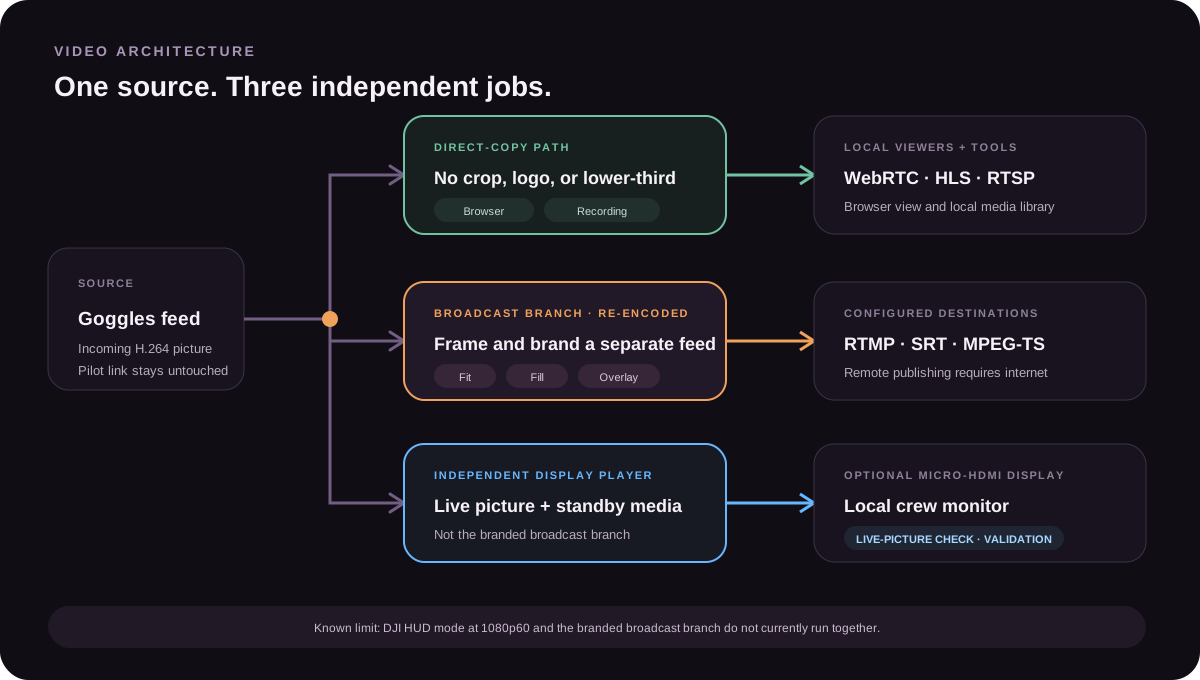
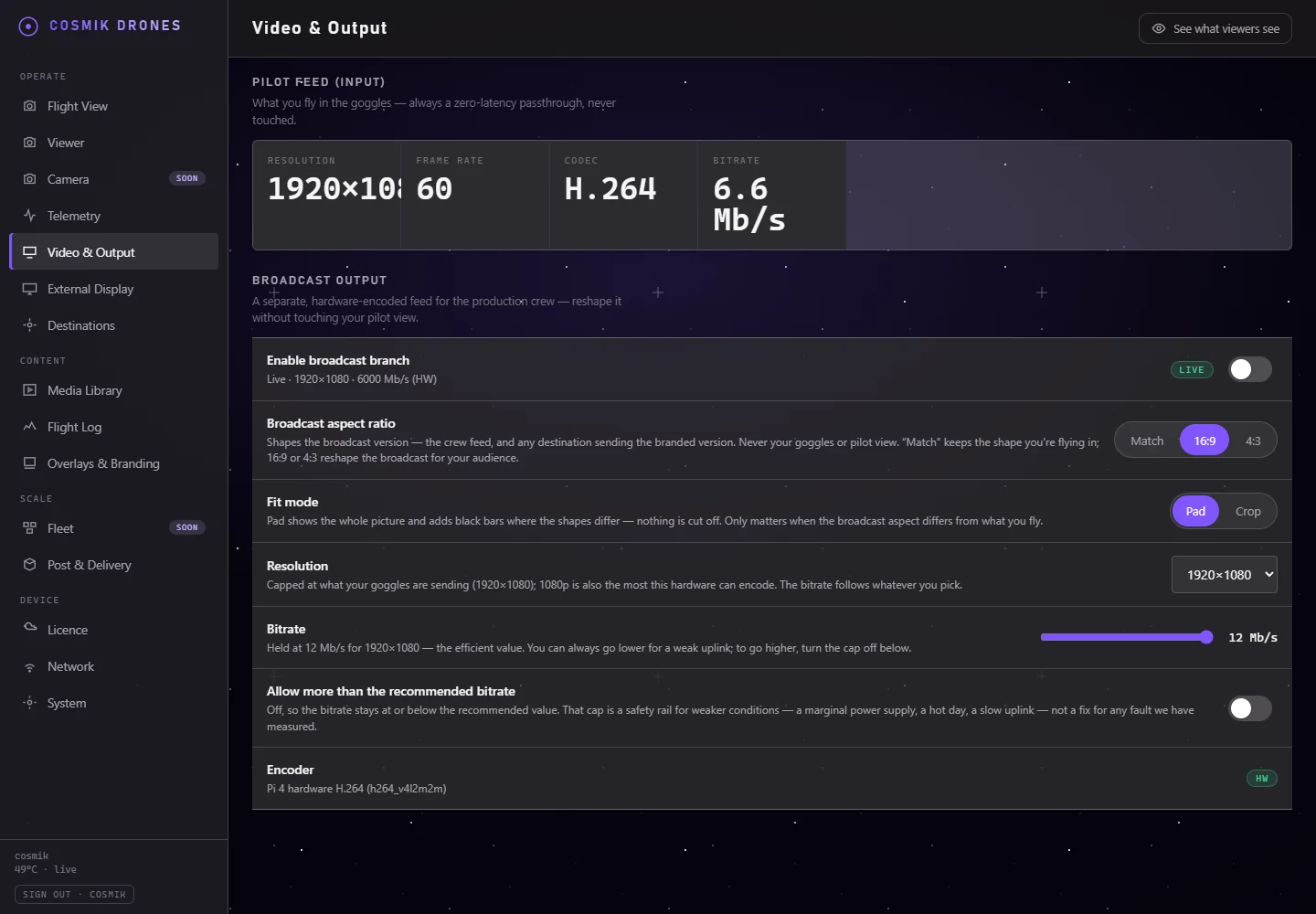
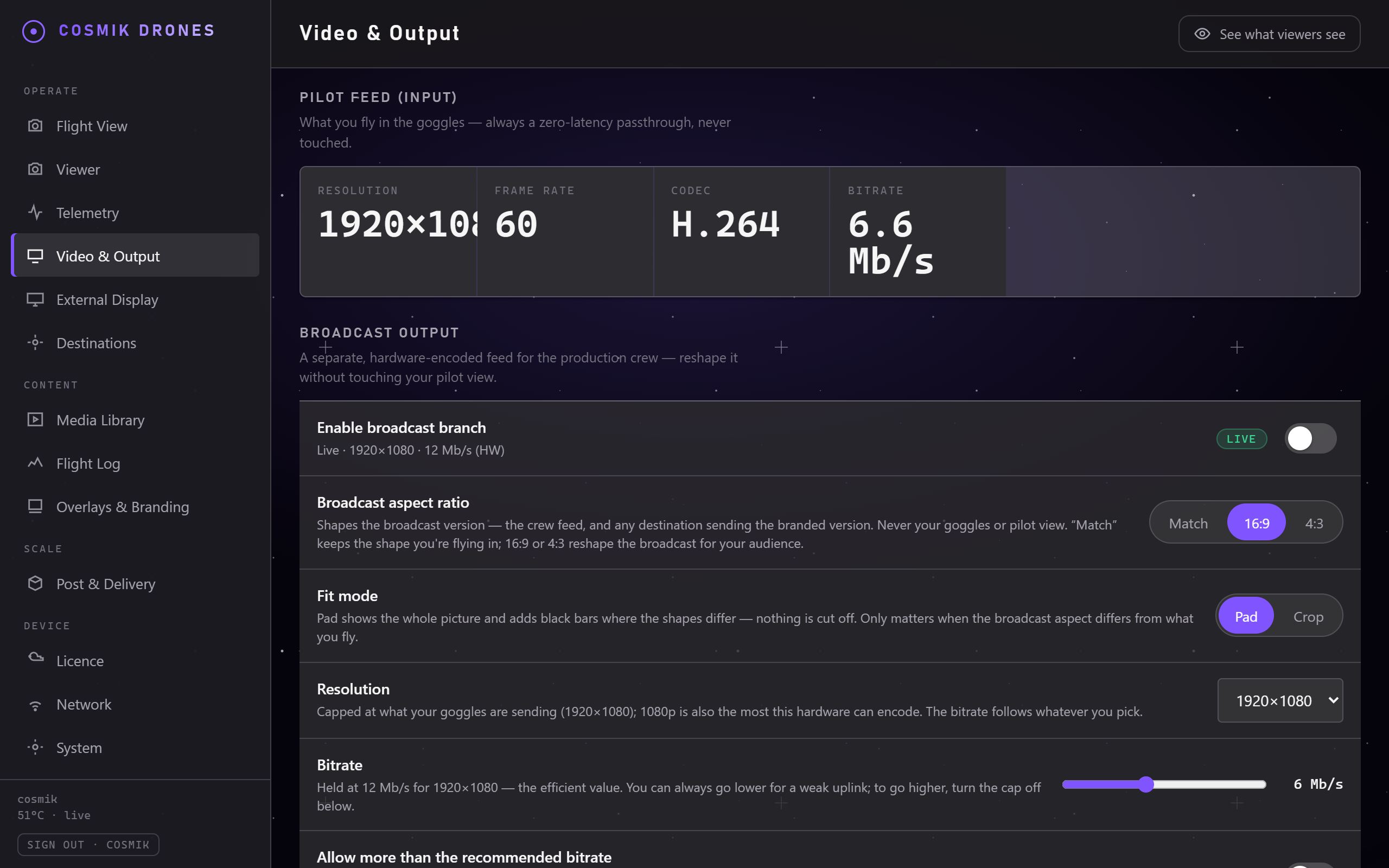
Video & Output. This is where the broadcast version of your feed is set up, separately from the picture you fly on.
This page does one important thing: it lets you broadcast in a different shape from the one you fly in — without touching what you see in your goggles.
The problem this solves
FPV pilots often fly in a 4:3 picture — taller, more of the ground and sky, better for flying. But almost everything you'd broadcast to — YouTube, a TV, a projector, a client's edit — wants 16:9, the familiar widescreen shape.
You shouldn't have to pick one. Cosmik Streamer makes a second version of your flight in whatever shape you need, while your own view stays exactly as you like it.
The two feeds
| Pilot feed | Broadcast version | |
|---|---|---|
| What it is | Exactly what you see, untouched | A reshaped, branded copy |
| Speed | Fastest possible | Slightly behind |
| Quality | Original, no re-processing | Re-encoded |
| Your logo? | No — always clean | Yes, if you add one |
| Always on? | Yes | On when you switch it on, or on its own when a destination needs it |
| Sent to YouTube? | If a destination is set to Pilot feed | If a destination is set to Branded — which is what new ones use |
The pilot feed is never affected by anything on this page. That's the whole design.
Turning on the broadcast version
On the Video & Output page, find Enable broadcast branch and switch it on.
After a few seconds the label reads Live, showing you the size and quality it's producing, like 1920×1080 · 12 Mb/s (HW).
Its viewing addresses then appear in the Live now list on the Destinations page.
If the label reads Waiting, nothing is wrong. The broadcast version reshapes the picture coming from your goggles, so it has nothing to work with until that picture is arriving — which is the normal state before you power the aircraft. It starts on its own, within a second or two, as soon as video appears. You don't need to switch anything off and on again.
Live means live. The label only says Live while the broadcast version is actually producing video this second. If it stops producing — the feed drops, the encoder gives up — the label stops saying Live and tells you why underneath. It will never claim a client is watching a picture that isn't being sent.
You may find it already on. A destination set to Branded starts the broadcast version by itself, because that is the picture it sends. When that happens the row says so, and the switch stays where you left it. Switching it on here keeps the broadcast version running all the time, whether or not a destination needs it — which is what you want if a crew is pulling it over your own network.
The settings
Aspect ratio
The shape of the broadcast picture.
- Match — the same shape you're flying in. The Streamer reads the shape off the picture arriving from your goggles, so if you switch the goggles between 4:3 and 16:9 the broadcast follows within about half a minute. Until a picture is actually arriving it can't know the shape, so it uses the resolution below instead — the page tells you which of the two is happening.
- 16:9 — standard widescreen. This is what you want for YouTube, TVs and projectors.
- 4:3 — the taller shape.
Changing the shape restarts the broadcast picture for a moment. That's unavoidable — the picture is a different size afterwards — and it happens whether you change it yourself or Match follows a change you made in the goggles. Your own view and your recording are not affected.
Fit mode
What to do when the two shapes don't match — for example flying 4:3 but broadcasting 16:9.
- Pad — keeps the whole picture and adds black bars at the sides. Nothing is lost.
- Crop — fills the screen completely by trimming the top and bottom. No black bars, but you lose some of the edges.
Which should I choose? Pad if the client needs to see everything you saw. Crop if you want a full-screen look and can afford to lose a little off the edges.
Resolution
How big the broadcast picture is. Normally two choices: 1920×1080 and 1280×720.
The list only ever offers what your Streamer can actually produce, which is whichever of these two limits is tighter:
- 1920×1080 is as large as this hardware can make. The chip that does the encoding cannot go higher, so nothing bigger is offered.
- Never larger than the picture your goggles are sending. Making the picture bigger than the one that arrived cannot add detail that was never there — it just uses more of your upload, and YouTube shrinks it back down again anyway. So if your goggles send 1280×720, that is the only size on the list.
The page tells you which limit is doing the capping. Before you power the aircraft there is no picture to measure, so the list shows everything the hardware can do and narrows on its own the moment video appears.
"My saved setting changed by itself." If a setting was saved that your Streamer cannot deliver — an older version of this console offered 2560×1440, which neither limit above allows — the page corrects it, saves the correction, and tells you in plain words what it changed and why. It will not quietly pretend to use a setting it is ignoring.
Bitrate
How much data the broadcast picture uses — effectively its quality.
You normally don't touch this. Picking a resolution sets it for you to the value that looks good without wasting upload — 12 Mb/s at 1920×1080, 6 Mb/s at 1280×720.
A cap holds it there, and the cap is on to start with. You can always slide lower — that is the single most effective fix for a stream that stutters or buffers for viewers. To go higher, switch on Allow more than the recommended bitrate, which opens the slider up to 30 Mb/s.
Should you turn the cap off? Usually no, and here is the honest reason:
- It almost certainly won't look better. YouTube, Facebook and Twitch re-compress whatever you send them. Past the recommended value the extra data is thrown away before anyone sees it.
- It is your upload it spends. A field connection is the thing most likely to give out.
- We have not proven it is expensive on the Streamer, and we will not claim it is. Measured on a Pi 4 running at full speed with nothing throttling it, the broadcast encoder used the same amount of processing at 30 Mb/s as at 12. Two identical readings are not much of a result, and we did not measure everything, so treat a high bitrate as untested rather than free.
The cap is best understood as a safety rail for the conditions you can't see — a marginal power supply, a hot day, a slow uplink — not as a fix for a problem we have caught the Streamer having. If you know your connection and you want the headroom, turn it off; the console says all of the above at the switch.
Encoder
Shows HW, meaning the work is done by dedicated hardware inside the box rather than general processing. This is why it can reshape and brand your video without slowing down your live picture. There's nothing to change here.
Pilot feed (input)
The top section is purely informational — it shows what's arriving from your goggles: resolution, frame rate, format, and bitrate.
Use it as a health check. Whatever arrives, Cosmik Streamer follows along automatically — there is nothing here to set.
Don't expect this to match what your drone is recording. The picture the goggles hand over USB is the live view, not the drone's own file. In our testing it arrived as 1080p30 even with the drone set to 4K60 — the drone still recorded 4K60 to its own memory card. That's normal, and it's exactly why the drone's card is what you deliver from; see Media & Clip Requests.
What it costs you
Running the broadcast version uses roughly a quarter of the box's processing capacity. Your live picture, your recording, and your streaming all continue exactly as before.
Adding your branding
Go to Logo & Overlays to put your logo, a name bar, and a timecode on the broadcast version. Those appear only on the broadcast version — never on your own view, and never in your recordings.
They do go out to YouTube, Facebook and Twitch, on any destination set to Branded — which is what new destinations use. So do the aspect ratio and bitrate on this page. See Streaming to Others for the per-destination choice.
Turning branding on costs nothing extra per destination. Every branded destination copies the same one broadcast picture, so ten of them still means one re-encode.
Putting the flight on a monitor or TV
Plug an HDMI screen into the Streamer and the live flight appears on it. Nothing to switch on, nothing to configure — it's for the crew, the client, or a stand at an event.
Open Console → External Display and the screen you plugged in is listed by name, with the size the Streamer is driving it at. If nothing is plugged in, the page says so.
Scaling decides how the picture fills that particular screen:
| Fit | The whole picture, correct shape, thin bars if the screen is a different shape. Recommended. |
|---|---|
| Fill | Stretches edge to edge. Nothing is cut off, but people and buildings look wider or taller than they are. |
| Crop | Fills the screen properly by trimming the picture's edges. No bars, no distortion, but you lose a little around the sides. |
The Streamer remembers each screen. Your setting is stored against that exact monitor, so the projector at a venue and the TV in your studio can each have their own — and plugging one back in applies its setting on its own.
While a monitor is connected, the same choice is also on the Flight View as a small button beside the other controls, so you can fix a screen without leaving the cockpit.
This is your live flight, not your goggles' own display, and it is a separate thing from the waiting screen between flights — that one is on Logo & Overlays.
Source: /docs/video-and-output.md