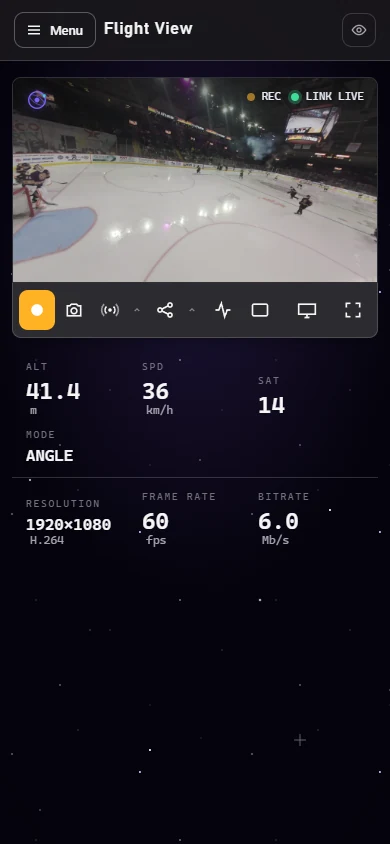
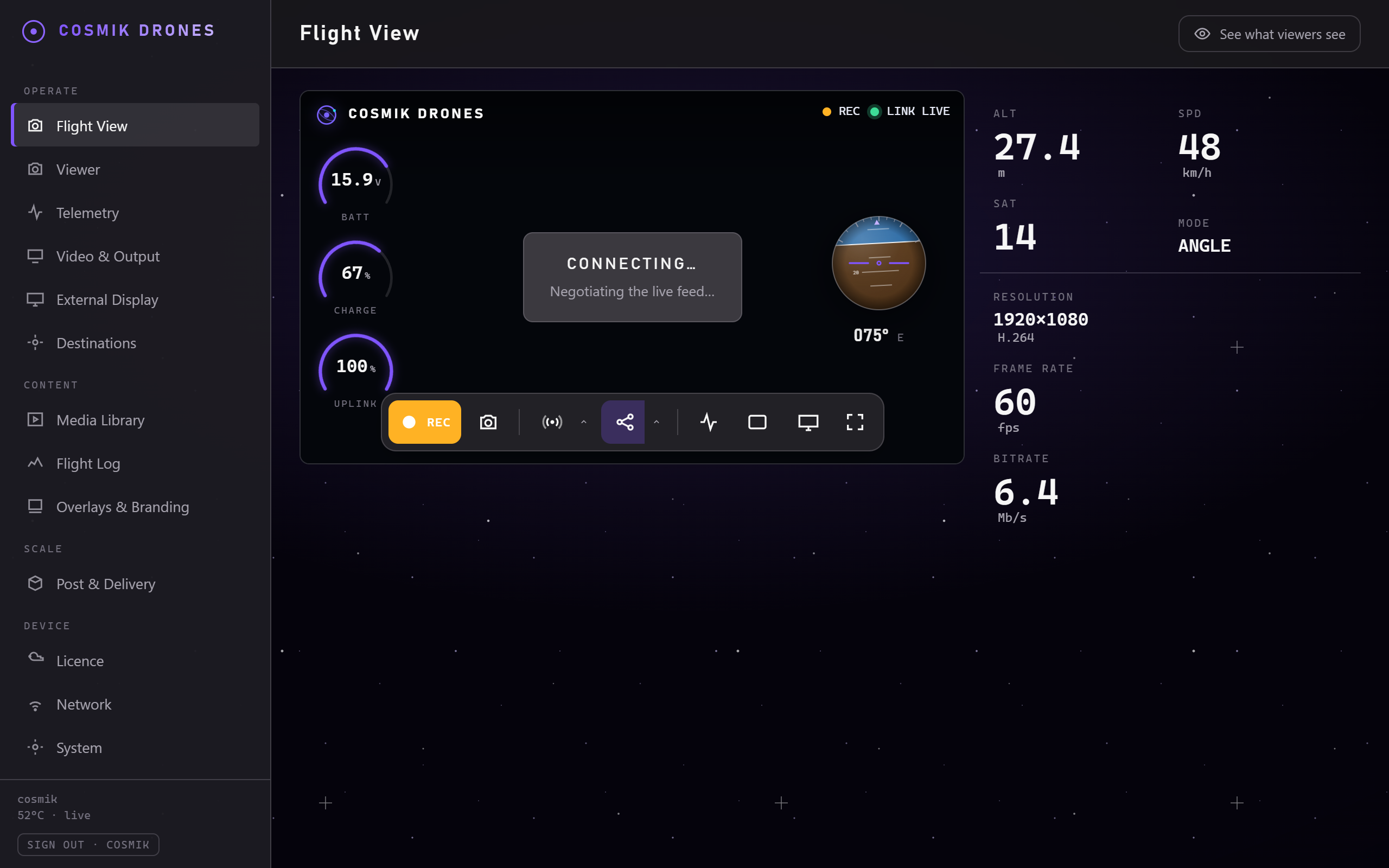
Flight View. The picture fills the page, the controls sit under it, and the badges along the top tell you whether you are recording and whether the link is live.
This is the screen you will spend most of your time on: the live flight, full screen, through the local browser path.
The controls hide themselves after a few seconds of stillness, so what's left is a clean picture. This matters — it means you can point a TV, a projector, or a capture card at this screen and nobody sees buttons floating over your footage.
Move the mouse or tap the screen to bring the controls back.
What you'll see
Along the top — a thin strip showing the picture's health:
| Reading | What it means |
|---|---|
| LINK LIVE / WAITING FOR FEED | Whether the goggles are currently sending a picture |
| Resolution | The size of the picture, e.g. 1920×1080 |
| FPS | Frames per second — how smooth it is |
| Bitrate | How much data the picture is using. Higher generally means better quality |
Around the picture — your flight readings, if your radio is sending them. See Signal & Telemetry to set that up.
Along the bottom — the controls:
| Control | What it does |
|---|---|
| Record | Starts and stops saving the flight to the box |
| Snapshot | Grabs a single still frame from the live picture |
| Telemetry overlay | Shows or hides your signal readings over the picture — this screen only |
| Fit / Fill | Switches between filling the screen and showing the whole picture — this screen only, never what viewers see |
| Fullscreen | Hides your browser's own bars for a truly clean image |
While an HDMI monitor is plugged in, one more button appears beside these for that screen's scaling — see Video & Output.
At the top of the page — See what viewers see, which opens the public viewing page: exactly what a guest with your link is watching. Your settings are in the Menu beside it (on a phone) or the sidebar (on a bigger screen).
Tip: on the viewer page, double-click anywhere on the video to go fullscreen instantly.
Recording a flight
Out of the box, recording starts by itself the moment a picture arrives — you never lose the start of a flight. Prefer to press the button yourself? Turn off Start recording automatically on the Media Library page, and recording waits for you.
Press Record to stop a recording, or (in manual mode) to start one. The button lights up while the box is saving.
- Recording and watching are completely independent. Starting or stopping a recording never interrupts anyone watching, and never touches your own view in the goggles.
- Recordings appear in the Media Library straight away — you don't have to stop recording to see them listed.
- Recording is segmented as it runs, so what was already written stays on the card. Shut down with Console → System → Power off rather than cutting power.
Files are named with the date and time so they sort neatly.
Sharing the live picture with others
Anyone on the same network can watch — they don't need the box, an app, or a login.
Send them the same address you use (http://cosmik.local). If they're running production software like OBS or vMix, send them the address from OBS & Production Tools instead — it's the same picture, set up the way that keeps the delay down.
There's no limit imposed on how many people watch, though a very large number on a weak Wi-Fi network will eventually strain it.
A word about delay
There is always a small delay between your goggles and this page. Your feed is passed through untouched to keep it as small as we can — it isn't re-processed or re-compressed on the way, which is also why it keeps its original quality.
We don't publish a figure for that delay. Quoting one honestly means measuring the whole chain, goggles to screen, and until we have done that we would rather say nothing than give you a number to plan around.
If you also switch on the broadcast version (see Video & Output), that second version is processed — to add your logo and change its shape — so it runs slightly behind. Your own view and the fast live picture are never affected by it.
If the picture doesn't appear
The screen will tell you plainly — you'll see "Waiting for goggles link" rather than a frozen or black image.
The first cable check is to disconnect the USB-C data cable from the goggles, wait briefly, and reconnect it. See Troubleshooting for the evidence-ordered checks.
Source: /docs/live-view.md