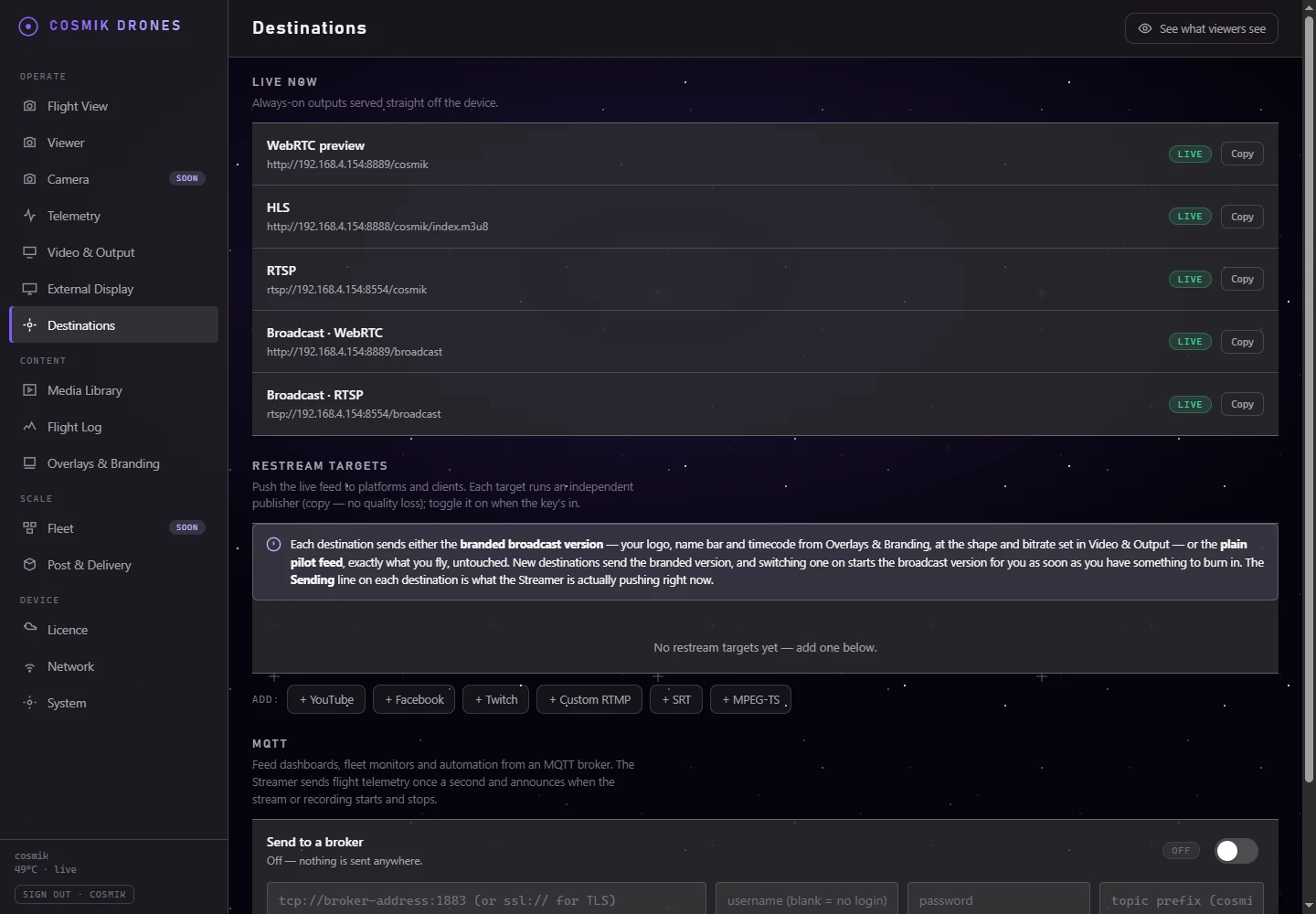
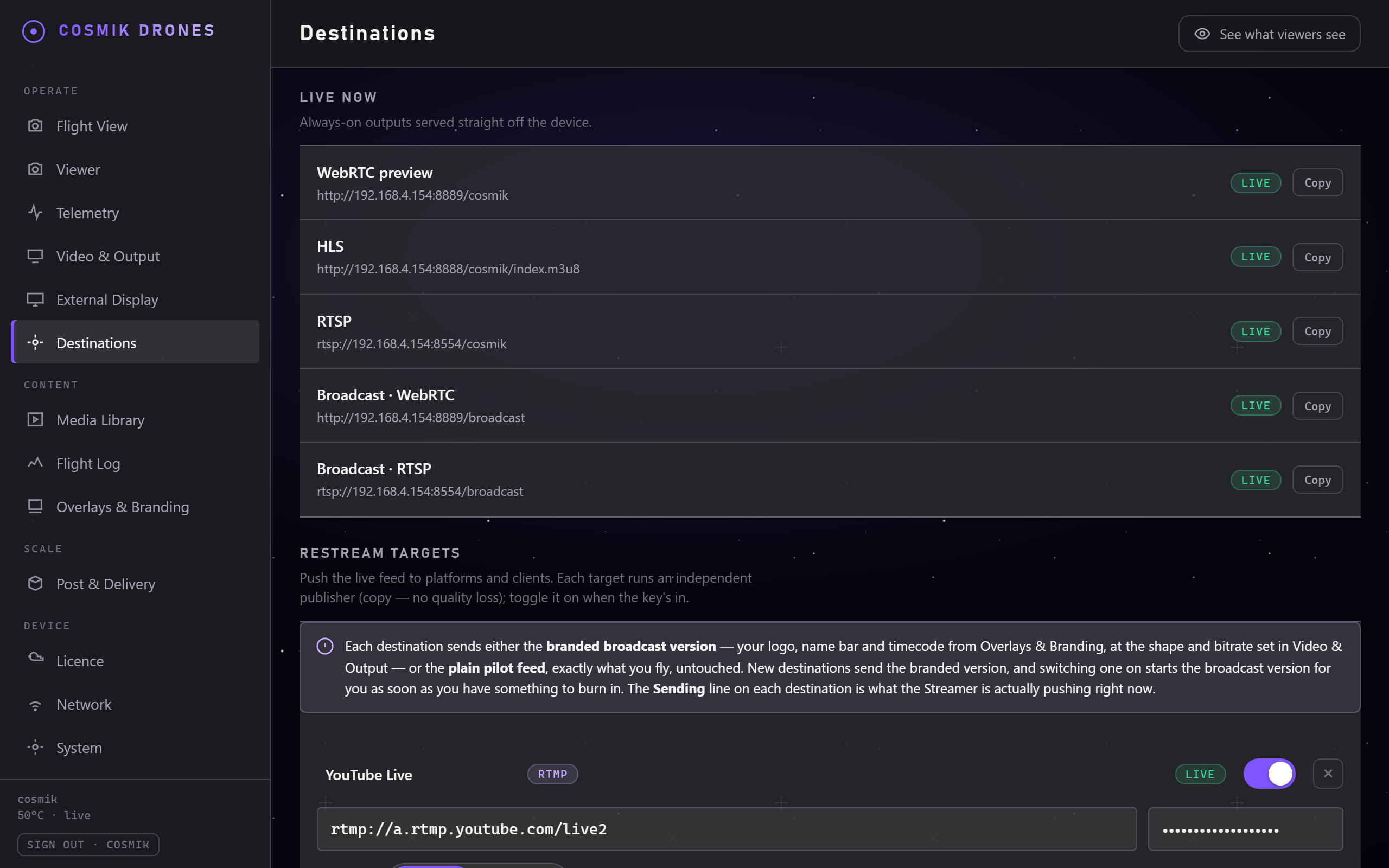
Destinations. Each place you send the flight to - a streaming service, a vision mixer, a screen at the venue - is listed and switched on here.
There are two ways to get your flight in front of people:
- On your own network — instant, free, no accounts. Best for clients standing nearby, a monitor at the event, or a vision mixer.
- Out to the internet — YouTube, Facebook, Twitch, or a client's own system.
Both are on the Destinations page in the Console.
1. Sharing on your own network
The Live now section lists addresses that are always working — nothing to switch on.
| Link | Use it for |
|---|---|
| WebRTC preview | Watching in a browser. Fastest option. Send this to people. |
| HLS | Smart TVs and players that don't do WebRTC. Several seconds of delay. |
| RTSP | Gear that can only take RTSP — some vision mixers and capture systems. Several seconds of delay. |
Press Copy next to any of them to copy the address, then paste it into a message or into your software.
Which one should I send someone? The WebRTC preview link, every time. It opens in any browser and is the quickest.
⚠️ Using OBS or vMix? Don't use the RTSP link. Those tools hold a couple of seconds of video before showing anything, so your flight ends up visibly behind. There's a better way that takes the same time to set up — see OBS & Production Tools. Only reach for RTSP when your gear genuinely can't do anything else.
2. Going live to YouTube, Facebook and others
The Restream targets section pushes your flight out to the internet.
Adding a destination
- Press one of the Add buttons:
+ YouTube,+ Facebook,+ Twitch,+ Custom RTMP,+ SRT, or+ MPEG-TS. - A new entry appears with the correct address already filled in for that platform.
- Paste your stream key into the key box (see below for where to find it).
- Flip the switch on.
That's it. Within a few seconds the label changes to Live and you're broadcasting.
Where to find your stream key
Your stream key is a long password-like code from the platform itself:
- YouTube — YouTube Studio → Go Live → Stream key
- Facebook — Creator Studio → Live Producer → Stream key
- Twitch — Creator Dashboard → Settings → Stream Key
Copy it and paste it in. It's hidden as you type, and it's stored on your box so you only do this once per platform.
Keep your stream key private. Anyone who has it can broadcast to your channel.
Watching the status
Each destination shows you exactly what's happening:
| Label | Meaning |
|---|---|
| Off | Switched off. Nothing being sent. |
| Connecting | Dialling the platform. Normal for a few seconds. |
| Waiting | Set to Branded, and the broadcast version is still starting. Normal for a few seconds; nothing to do. |
| Live | You're broadcasting. |
| Error | Something's wrong — the message underneath tells you what. |
If the internet drops out mid-flight, Cosmik Streamer keeps retrying on its own and reconnects when the connection comes back. You don't have to do anything.
You can rename any destination (tap its name) — handy when you have several, like "Client — YouTube" and "Our channel".
Running several at once
You can have as many destinations live at the same time as you like — YouTube and Facebook and a client's system, simultaneously. Each runs independently, so one having trouble doesn't affect the others.
Note: each live destination uses a little of the box's capacity and your internet upload. If you're on a weak mobile connection, two or three is a sensible maximum.
The other destination types explained
Most people only need YouTube/Facebook/Twitch. The others are there for professional work:
- Custom RTMP — any platform not in the list. Paste the address they give you.
- SRT — a broadcast-industry format designed to survive unreliable internet. If a client asks for SRT, they'll give you the address to paste.
- MPEG-TS — sends video directly to another machine on a network, common in outside-broadcast setups.
If none of that means anything to you, you don't need it. See the Glossary.
Which picture gets sent?
Each destination has a Picture setting with two choices:
| Choice | What goes out |
|---|---|
| Branded (what new destinations use) | The broadcast version — your logo, name bar and timecode from Logo & Overlays, at the shape and bitrate set in Video & Output. |
| Pilot feed | Exactly what you fly, untouched and at full quality. No logo, no reshaping. |
Underneath each destination the Streamer tells you which one it is actually sending right now — not which one you asked for. If those two ever differ, the line underneath says why.
Branded is automatic
You don't have to switch anything else on. The moment you have something to burn in — a logo, a name bar or a timecode — the broadcast version starts by itself for any destination set to Branded, and stops again when nothing needs it. The switch on Video & Output is still there if you want it running all the time (for a crew pulling it over your own network), and turning it on there keeps it up regardless.
While the broadcast version is starting, a branded destination shows Waiting for a few seconds and then goes Live. It is not an error and there is nothing to do.
If you have not set up any branding yet, there is nothing to burn in, so a Branded destination sends the plain pilot feed and says so on its own line. Upload a logo and it switches over on its own.
When to choose Pilot feed instead
- The lowest possible delay. The branded version is re-encoded on the box, which adds a little delay and re-compresses the picture. YouTube and Facebook buffer far more than that anyway, so it rarely matters — but if a client is cutting live off your feed, give them the pilot feed.
- A client who wants a clean picture to add their own graphics to.
- You are already branding downstream in OBS or vMix.
Only one re-encode, ever. Ten branded destinations do not mean ten transcodes — they all copy the same one broadcast picture. Turning branding on costs about a quarter of the box's processing power in total, no matter how many destinations use it.
MQTT — feeding dashboards and automation
MQTT is a messaging system used by dashboards, automation tools and fleet monitors (Node-RED, Home Assistant and similar). If none of that means anything to you, skip this section — nothing here is needed for streaming.
The MQTT card on the Destinations page connects the Streamer to a broker of your choice:
- Type the broker's address — like
tcp://192.168.1.20:1883, orssl://…if your broker uses TLS. - Add the username and password if your broker needs a login. Leave the username blank if it doesn't.
- Flip the switch on. Connected means it's working; if the broker drops out, the Streamer keeps retrying on its own.
While connected, the Streamer:
- sends the flight telemetry once a second to
cosmik/telemetry— the same readings the Telemetry page shows, so signal strength always, and battery or GPS only if your aircraft actually reports them - announces on
cosmik/statuswhenever the stream or the recording starts or stops
The word cosmik is the topic prefix — change it in the card if you run several Streamers on one broker (say unit1, unit2).
Letting the broker control the Streamer
Out of the box the link is read-only: the Streamer sends, and obeys nobody. Switch read-only off and it also listens on cosmik/cmd for exactly three commands:
| Send this | It does |
|---|---|
{"action":"record","on":true} | Start recording (false stops) |
{"action":"broadcast","on":true} | Turn the branded broadcast version on or off |
false releases your switch. If a destination is set to Branded, the broadcast version keeps running for it — turning it off there would stop that destination sending. | |
{"action":"visitorMessage","message":"Back in 5 minutes"} | Change the message visitors see |
Anything else is ignored.
Think before switching read-only off. Anyone who can publish to your broker can then start and stop recording on your Streamer. Only do it with a broker you control.
Your broker password is kept on the Streamer itself, in a file only the Streamer can read.
Coming soon
- NDI — for studio production networks.
- Per-destination branding — a different logo or name bar for each destination. Today every branded destination carries the same one.
Source: /docs/destinations.md