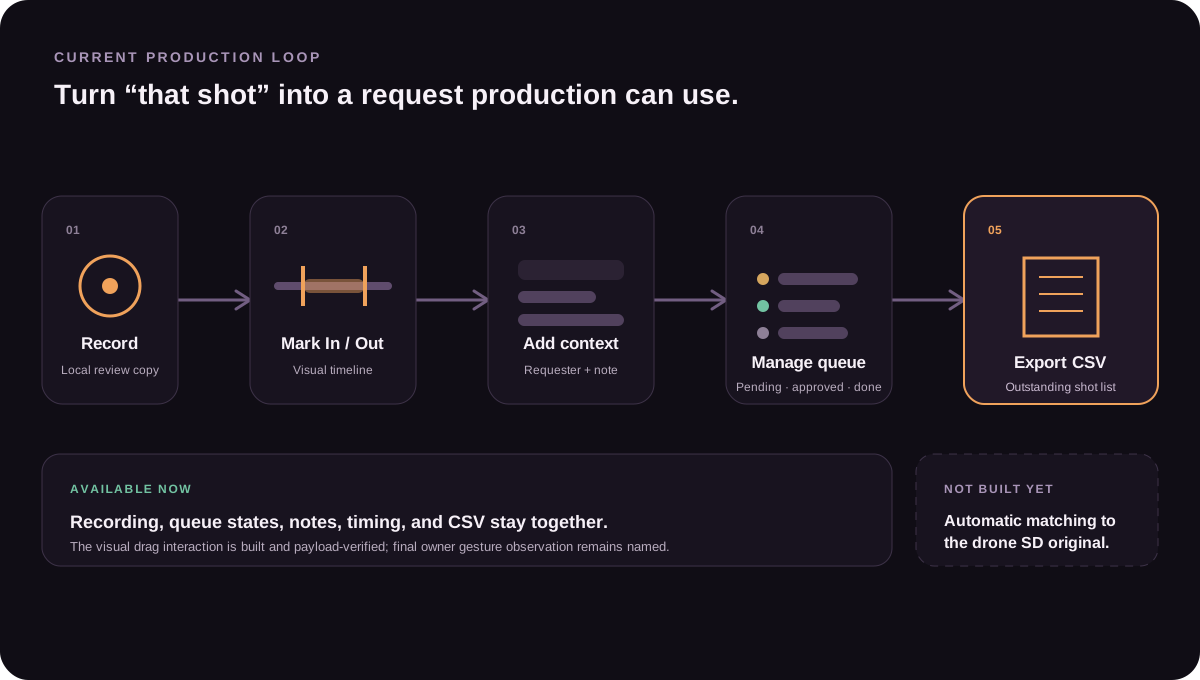
The Media Library. Recordings, the clips marked inside them, and the requests still owed all live here.
Every flight you record is kept on the box. This page is where you browse it, review it with a client or production team, and — the useful part — mark exactly which shots they want.
Recording: automatic or manual — your choice
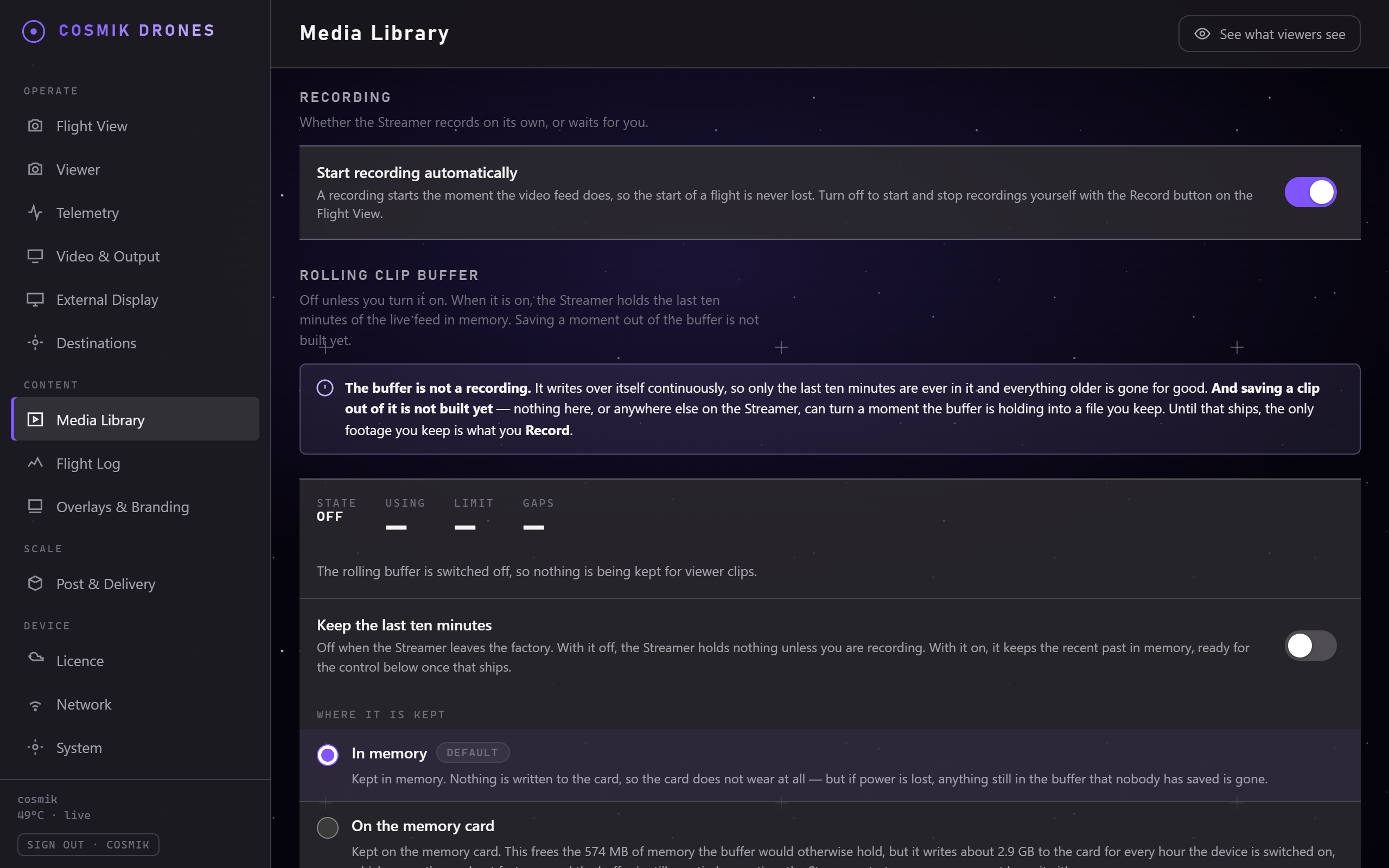
At the top of the Media Library page is one switch: Start recording automatically.
- On (how it ships): a recording starts the moment the video feed does, so the start of a flight is never lost even if your hands are full.
- Off: nothing records until you press Record on the Flight View. Useful when you fly a lot of throwaway batteries and don't want the box filling up with them.
The switch takes effect straight away — no restart. It never cuts off a recording that's already running: if the box is mid-recording when you turn it off, that recording keeps going — press Record to stop it, and from then on the box waits for you.
The rolling clip buffer
Underneath the recording switch is a second one: Keep the last ten minutes.
It is off when your Streamer arrives, and it stays off until you turn it on.
With it on, the Streamer quietly holds the last ten minutes of the live feed in its memory, and the page shows you how much it really has.
Saving a clip out of the buffer — coming soon. The holding half works. The half that turns a moment out of the buffer into a file you keep is not built yet: there is no control for it on the Media Library page or anywhere else on the Streamer. Until it ships, the only footage you keep is what you Record.
The buffer is not a recording
This is the one thing worth being clear about, because the page shows minutes and megabytes and it looks like a recording.
It writes over itself, constantly. Only the last ten minutes are ever in it. Everything older is gone for good — the Streamer does not keep it anywhere.
And nothing comes back out of it yet. Until the clip control above ships, the buffer is something you can watch filling and nothing more. It is not a backup, it is not a recording, and it is not somewhere to leave footage you care about. If the shot matters, press Record.
Where it is kept — and what each choice costs you
You get two options, and the page tells you what each one costs at the moment you pick it.
| Choice | What you get | What it costs |
|---|---|---|
| In memory (the default) | Nothing at all is written to your memory card, so the card doesn't wear out any faster. | If power is lost, whatever was in the buffer is gone. |
| On the memory card | Frees up about 574 MB of the Streamer's memory for everything else. | Writes about 2.9 GB to your card for every hour the Streamer is switched on, which wears the card out faster. The buffer is still emptied every time the Streamer starts up, so a power cut loses it either way. |
In memory is the right answer for almost everyone, which is why it's the default. Pick the card only if you specifically need that memory back and you don't mind the wear.
What the page tells you while it's running
- Held — how many minutes are actually in the buffer right now. Not the ten it's aiming for: the real number. It climbs from nothing when you switch it on.
- Using / Limit — how much space the buffer is taking, and the most it is allowed to take.
- Gaps — if the recorder was interrupted, the ten minutes aren't one continuous stretch, and the page says so rather than pretending otherwise.
Underneath those is a plain sentence from the Streamer itself saying what it's doing — including when it can't. If there isn't room for the full ten minutes it tells you how many you really have; if it's waiting for the video feed, it says that too.
Your recordings
Open Media Library in the Console. Every recording appears as a row showing a frame from it, its name, size, and the time it was made, newest first.
- Tap a recording to play it right there in the browser.
- Tap the download arrow to save it to whatever device you're using.
Recordings appear here while you're still flying — you don't have to stop recording to see one listed.
Arriving from the Flight Log? Pressing Watch this moment on a flight opens the right recording here and jumps straight to that point in it. If that recording has since been deleted, this page says so rather than sitting there doing nothing — the flight's readings are kept either way. See The Flight Log.
Clip requests — mark the shot with the client
This is the part that saves you real time.
Instead of writing down "the bit where you went round the building, maybe two-ish minutes in?", the exact moment gets marked and kept as a precise list.
You can do this yourself, or let the client do it. Signed in, you mark moments while reviewing with them. Or turn on Look back through your footage and Ask for a clip while watching in Sharing the Live View, and the client browses the footage and marks their own moments from the same link they are already watching on — no console password, and they still cannot download a video. Their requests arrive here with their name and note attached.
How it works
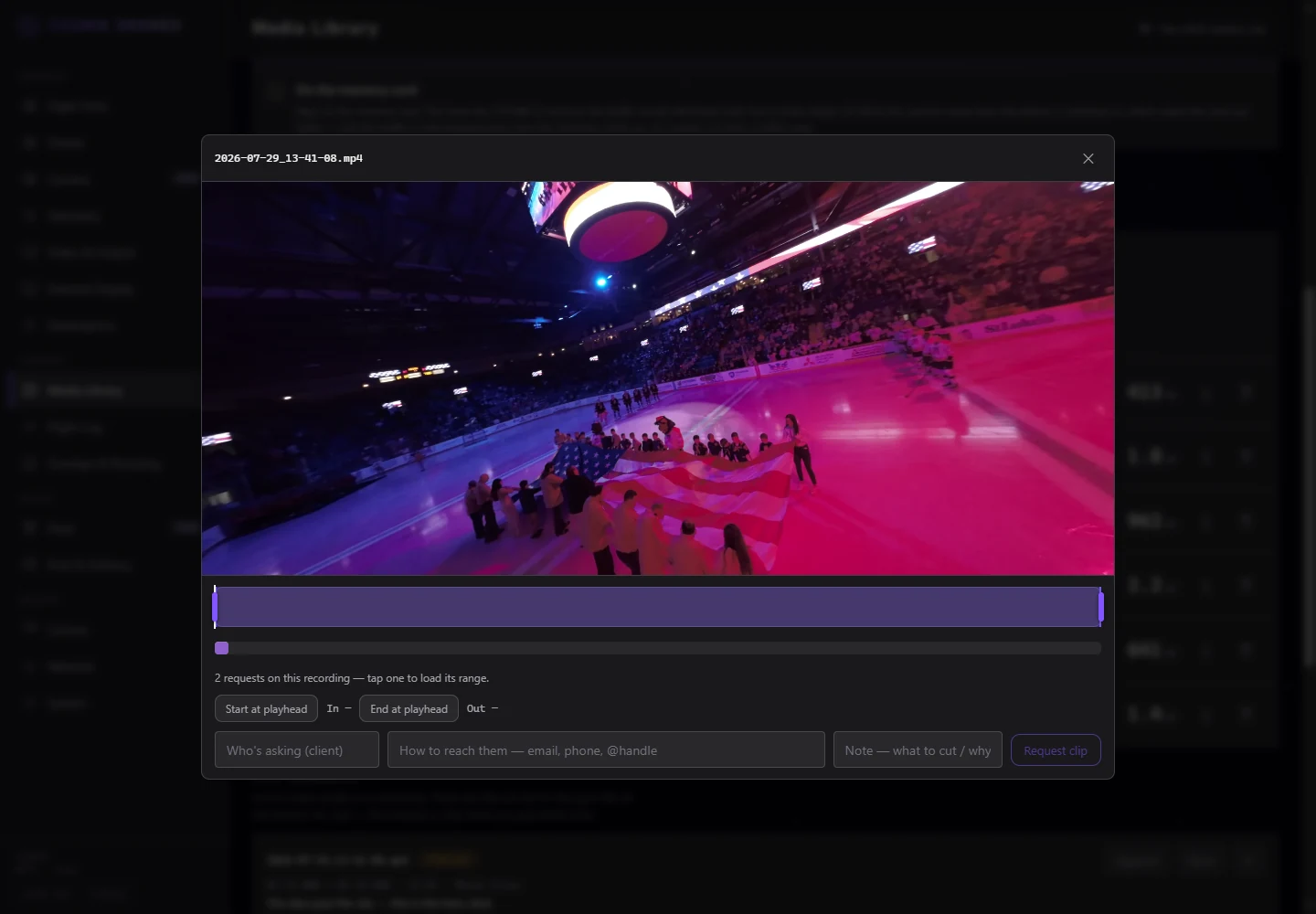
- Play a recording.
- Scrub to where the shot should start and press Start at playhead.
- Scrub to where it should end and press End at playhead.
- Fill in who's asking, how to reach them (email, phone, whatever they give you — it's just text, and nothing is ever sent automatically), and a short note — "hero orbit, use this one".
- Press Request clip.
The request drops into a queue underneath, showing the exact timings:
cosmik-20260721-2200.mp4    [pending]
00:00:05.500 → 00:00:12.250 · 6.8s · ClientA
hero orbit, use this one
Managing the queue
Each request has three actions:
| Action | Use it when |
|---|---|
| Approve | You've agreed to do it. Marks it as accepted work. |
| Done | You've delivered it. It drops off your outstanding list. |
| ✕ | Remove the request entirely. |
The shot list — getting shots to your editing software
On Post & Delivery, press Download the shot list and you get every outstanding request: the recording, the exact start and end times, how long the clip is, who asked, how to reach them, their note, and its current status.
That download is what the Cosmik Batch Exporter runs on — point it at the file and it does the cutting and stabilising for you. The Exporter is free, needs no licence, and comes from cosmikstreamer.com/batch-exporter. The list inside is an ordinary spreadsheet (CSV) too, so it also opens in Excel, Numbers, or Google Sheets if you prefer to cut by hand.
Finished requests are automatically left out — the list only ever shows work you still owe someone.
Twenty requests at once — GyroFlow project files
Doing twenty requests one at a time is the job this saves you — and for most people the shot list above already does it, because the Batch Exporter reads it directly. This extra step is only for opening shots in GyroFlow yourself.
On Post & Delivery, switch on Also make GyroFlow project files. A box appears asking for the folder on your own computer where the footage lives — the whole path, like D:\Shoots\2026-07-25 or /Users/you/Shoots. Type it, then press Download the shot list as usual.
The ZIP then also holds:
| Inside the ZIP | What it is |
|---|---|
projects/ | One GyroFlow project per outstanding request, with that clip's start and end already set. Drop the folder onto GyroFlow's render queue and export the lot. |
cosmik-cutlist.csv | The shot list, plus a column naming the project file for each request. |
README.txt | The same instructions, inside the download, for when you open it a week later. |
The project names start 001_, 002_, … and carry the recording, the timings and who asked, so a folder of finished exports still tells you what each one is.
Why the folder is asked for — and only then. GyroFlow needs the complete path to a video file. Given only a file name it opens with an empty screen asking you to load a video, and never says why. One paste per shoot spares you that on every clip in the batch; it is remembered in the browser you typed it into. With the switch off, nothing asks for a path at all — the Batch Exporter finds your footage by itself.
Which footage these projects open. They point at the folder you gave, plus the liveview recording's own name — the file the marks were made on. That is the right file for choosing and cutting, but liveview footage carries no motion data, so GyroFlow can trim it and cannot stabilise it. The drone's own card files do carry it — which is why the next section matters.
The shot list can also name the drone's own files. When you write the shot list onto the footage card (below), the Streamer looks at the card's videos, works out from your flight log which one each clip came from, and adds that to the shot list: the drone's file name and the matching start and end inside it. Editing tools that understand the shot list (the Cosmik Batch Exporter does) then open the drone's footage — with its motion data — instead of the liveview copy, so stabilising works. Two honest limits: the match is placed to within a few seconds, not to the frame — fine for finding the shot, and GyroFlow lines the motion data up itself — and if the Streamer can't tell which card video a clip belongs to, it says nothing rather than guessing. Those columns simply stay empty, and cutting by the liveview timings still works as before.
Write the shot list onto the footage card itself
The card is what travels to the edit — so the instructions can travel on it. Instead of (or as well as) downloading the ZIP:
!The Post & Delivery page with a footage card detected
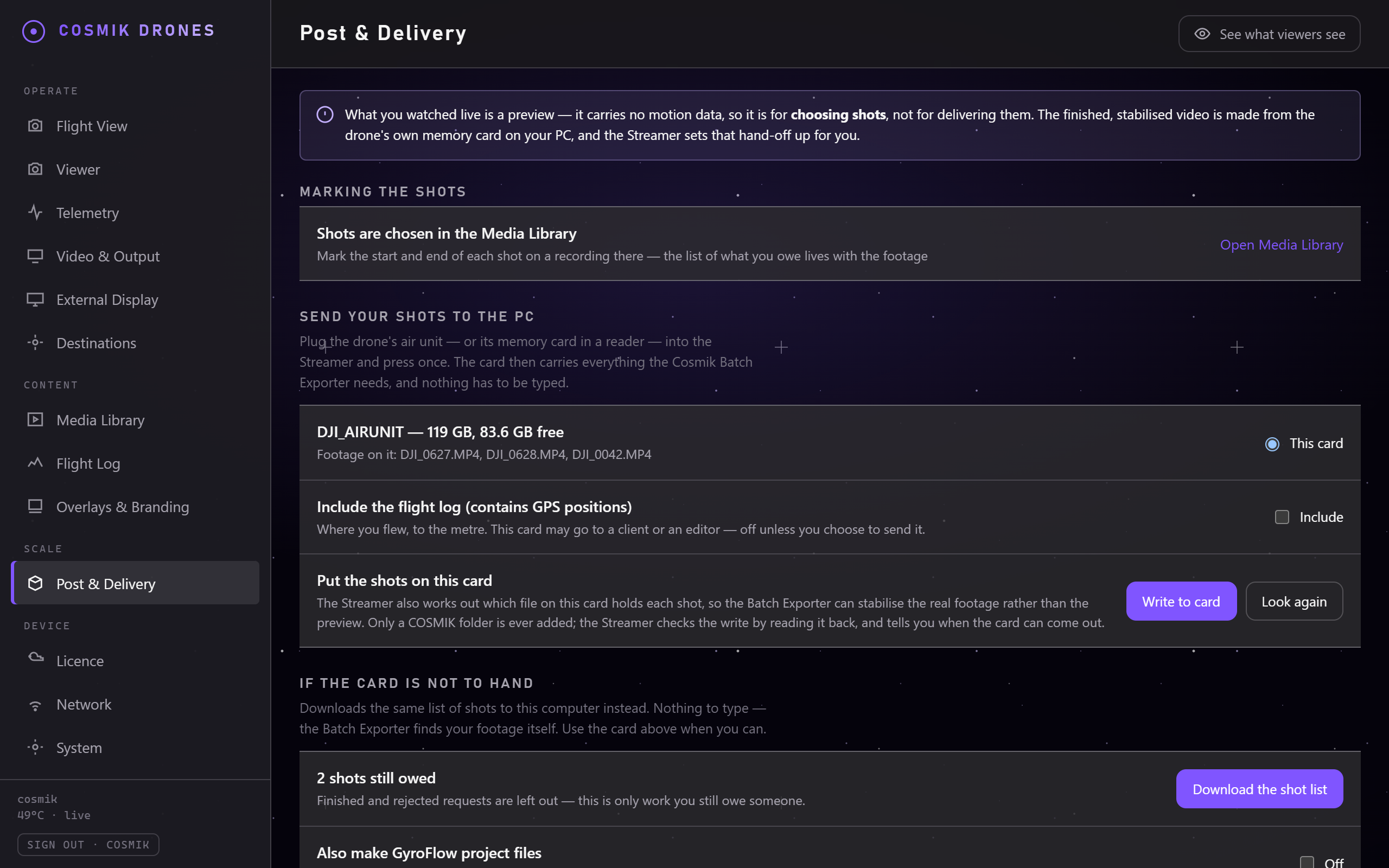
Post & Delivery with a card plugged in. The Streamer names the card, shows how much room is left on it, and lists a few of the files it found — so you can confirm it is the right card before anything is written. The flight log is left unticked unless you choose it.
- Plug the drone's air unit (or a card reader with the footage card) into the Streamer's USB port. The drone can stay powered off.
- On Post & Delivery, the card appears with its size, free space, and a few of the footage filenames on it — check it's the right card before going on.
- Press the write button — it names its own work, e.g. "3 shots → DJI_AIRUNIT", so you can see what is about to go where. While it says "Do not remove the card", don't. When it says "Written and checked. Safe to remove the card." — it is, and it means it: the Streamer read every file back off the card and compared it before saying so.
What lands on the card is one COSMIK folder holding the same bundle as the download. Nothing else on the card is ever touched — your footage cannot be modified or deleted by this, and the Streamer refuses to write while a recording is running or when the card is low on space.
Writing the card is also the moment the Streamer links your clips to the drone's own files (see "The shot list can also name the drone's own files" above): it needs to see the card and your flight log side by side, and this is when it does. So if you flew, then made clips, then write the card — the shot list on it already points every clip at the right drone file.
The flight log checkbox is off on purpose. Ticking "Include the flight log" adds your flight data files to the folder — and they contain GPS positions: where you flew, precisely. If this card is going to a client or an editor, think before including it.
Two things worth knowing:
- Requests marked Done are never in the bundle — same rule as the shot list.
- If you have already deleted a recording off the box to free space, its requests are still in the bundle (the work is still owed). The CSV's
recording_on_boxcolumn saysno, so you know to point the folder at your own copy of that flight.
Line up another camera's footage
If a GoPro (or another camera) flew on the drone, the Streamer can work out which flight each of its clips belongs to, and exactly where it lines up — automatically, from the motion both cameras recorded. No clocks are involved and nothing has to match up by time, so it works even when every device thinks it is a different day.
- Plug that camera's memory card — or the camera itself by USB — into the Streamer.
- Open Post & Delivery. The card appears with its name and size, and a few of the files on it — check it is the right card.
- Pick the card, then press Read this card.
- The card's own row tells you what is happening. The first read of new footage can take several minutes — leave the card in until the row stops saying Reading.
- When it finishes, the row says how it went — for example "Read — all 4 clips are lined up with your flights." Then the card is safe to take out.
Nothing is ever written to that card. The Streamer only reads it, and remembers how its footage lines up with your flights.
The order does not matter. For the match to work, the Streamer needs to have read the drone's own memory card too — but read them in whichever order suits you. If the other camera's card goes in first, its footage is remembered and lined up automatically the moment the drone's card is read later. Writing the shot list to the drone's card (above) counts as reading it.
If the row says nothing could be lined up, the usual reason is that the drone's card has not been read yet — read it, and this card's footage is picked up on its own, without inserting it again.
Your shots come out of that camera's footage too. Once its footage is lined up, the other camera's moments are part of the same shot list — each request also names that camera's file and the matching start and end inside it. Nothing extra to export: the next shot list you download or write to a card carries both. To get the clips, open the Cosmik Batch Exporter, give it the shot list, point it at that camera's card (or a folder of its footage), and press Create my clips — it cuts that camera's version of every shot it finds there, exactly as it does for the drone's own card. Do the cards in any order, one at a time: each card produces the shots that live on it.
You stay in control of every clip. The one button is all you ever need — but before pressing it, the Exporter can show you each clip it is about to make. Press Look at each clip first: watch the actual moment from the footage, nudge its start and end if you want (it tells you plainly when you have moved away from what was requested), or give any single clip its own stabilization settings. Skip all of that and the button works exactly as before. And where the finished videos land is always shown as the real folder, with a Choose button beside it.
Set the look before you press, and get coloured clips in one go. Above the button there is a Look panel. Leave it alone and your clips come out exactly as they always have. Choose a look — one you have saved, or a colour file (a .cube LUT) from your own collection, plus any brightness and colour adjustments — and every clip in the run comes out already coloured. You do not export twice and you do not wait twice. Any single clip can use its own look instead, or none at all, in the same Look at each clip first list where you set its stabilization.
If you want the plain, un-coloured version kept as well, tick also keep the un-coloured version — useful if you might want to try a different look later without stabilising all over again. Otherwise you simply get the finished, coloured video.
You can still colour a video after it is finished: every video in the list has a Color button. That has not gone away — it is just no longer the only way.
Important: which file the clip actually comes from
This trips people up, so it's worth being clear.
The recordings on Cosmik Streamer come from the goggles feed — the same picture you fly with. It's ideal for choosing shots: it's instantly available, you and the client can watch it together on location, and it's time-accurate.
But the final deliverable is usually cut from the higher-quality file recorded on the drone's own memory card, because that's the one carrying the motion data that stabilisation software needs.
The shot list is the bridge between the two. The timings your client marks on the liveview recording line up with the drone's own recording, so you apply that list to the better file when you get home.
In short:
- Liveview recording → what you choose shots from, immediately, together.
- Drone's memory card → what you deliver from, later.
Critical setting to check: for stabilisation to work at all, your air unit must have RockSteady/EIS turned OFF and the field of view set to Wide. On any other setting the drone records no motion data whatsoever, and no software can add it afterwards. Check this before a paid shoot — it cannot be fixed later.
Storage
Recordings build up over time. The System page shows how much space is left.
You can free space by downloading what you need and deleting the rest from the box.
Your footage is never deleted automatically
Cosmik Streamer keeps every recording until you delete it. Because of that, the storage can fill up — and the Streamer keeps you ahead of it:
- At 20%, 10% and 5% space left, a warning appears at the top of the console with the number of gigabytes remaining.
- If the card actually fills, recording pauses and the console says so plainly. The live stream itself is not affected — only the recording pauses.
- To make room, download what you want to keep, then use the delete button next to a recording (each delete asks you to confirm). Once enough space is free, recording resumes by itself.
Coming soon
- Saving a clip out of the rolling buffer — the buffer holds the last ten minutes today, but there is no way to turn a moment out of it into a permanent recording. Until it ships, only what you Record is kept.
- Automatic delivery — sending finished clips onward to clients.
Source: /docs/media-and-clips.md