The Viewer page. This controls what someone watching - a client, a guest, a passer-by - is allowed to see.
At a shoot, the people around you want to see what you're seeing — the client, their guests, the venue's team. Handing them a link should be easy, and it should never mean handing them your controls.
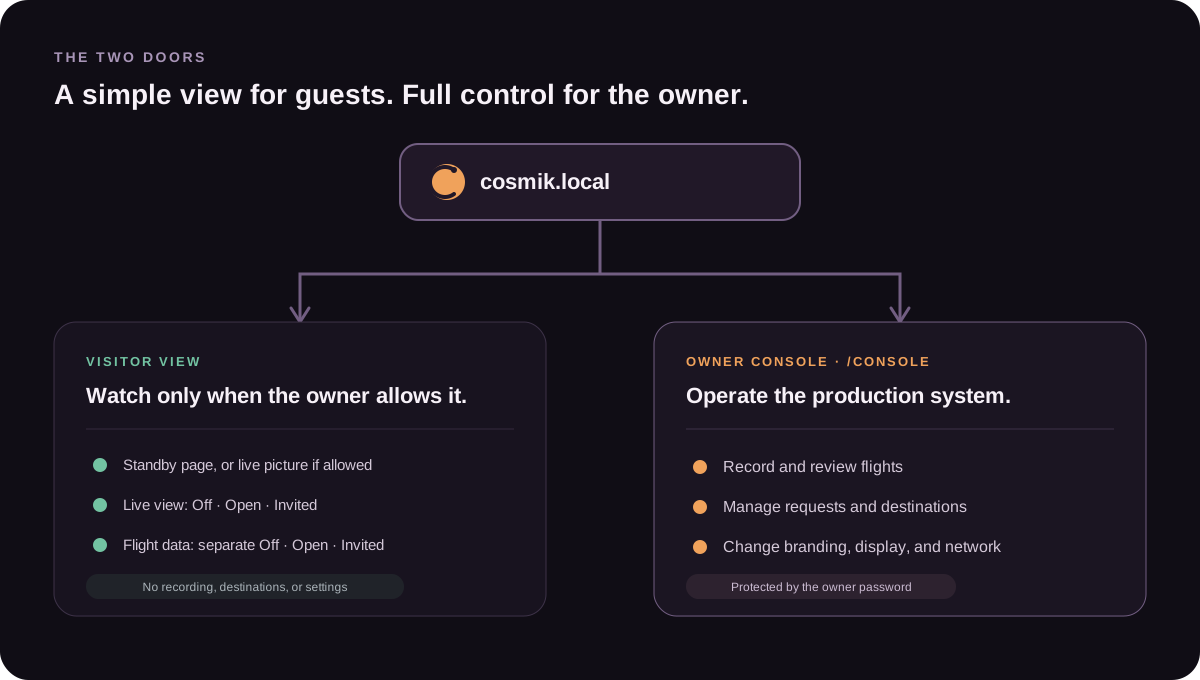
The Streamer has two separate doors for exactly this reason.
The two doors
| Who it's for | What they get | |
|---|---|---|
| Visitor link | Clients, guests, anyone watching | The flight, full screen. Nothing else. |
| Console | You, the pilot | Everything — recording, streaming, settings |
A visitor sees no settings and no recording button. Besides full-screen, the only other control on their page is a small, faded gear in the corner — your sign-in door. If a guest taps it out of curiosity, all they meet is the password gate: nothing to break, nothing to change, nothing of yours to see.
Sharing the live view
- Get them on your Streamer's Wi-Fi. Give them the name and password — or, if you chose an open network during setup, they just pick the name from their Wi-Fi list, nothing to type. Quicker still, either way: open Console → Network → The Streamer's own Wi-Fi, press Show next to Join by QR code, and hold the screen up — one scan joins their phone to your network. (In password mode the password rides inside that code, so show it only to people you'd give the password to.)
- Tell them to open the Streamer's address in any web browser.
That's it. They land straight on the full-screen flight view.
To find the exact link to send, open Console → Network → Share with viewers and press Copy.
Or let them scan it. On the same card, press Show next to QR code and hold the screen up — their phone camera opens the flight straight away. No spelling an address out across a noisy venue. The code is drawn by the Streamer itself, so it works with no internet.
The link works on phones, tablets, laptops and smart TVs. No app to install, no account to create.
Or have their phone open it for them (being tested). On the same card, switch on Welcome page when a phone joins. From then on, a phone that joins your Streamer's Wi-Fi pops up a page by itself with one button, Watch now, and pressing it opens the flight. Each phone sees that page once. This is new and has not yet been tried on enough phones: if a guest says their phone left your Wi-Fi or switched to mobile data, switch it off and tell us which phone it was.
Choosing what viewers are allowed to do
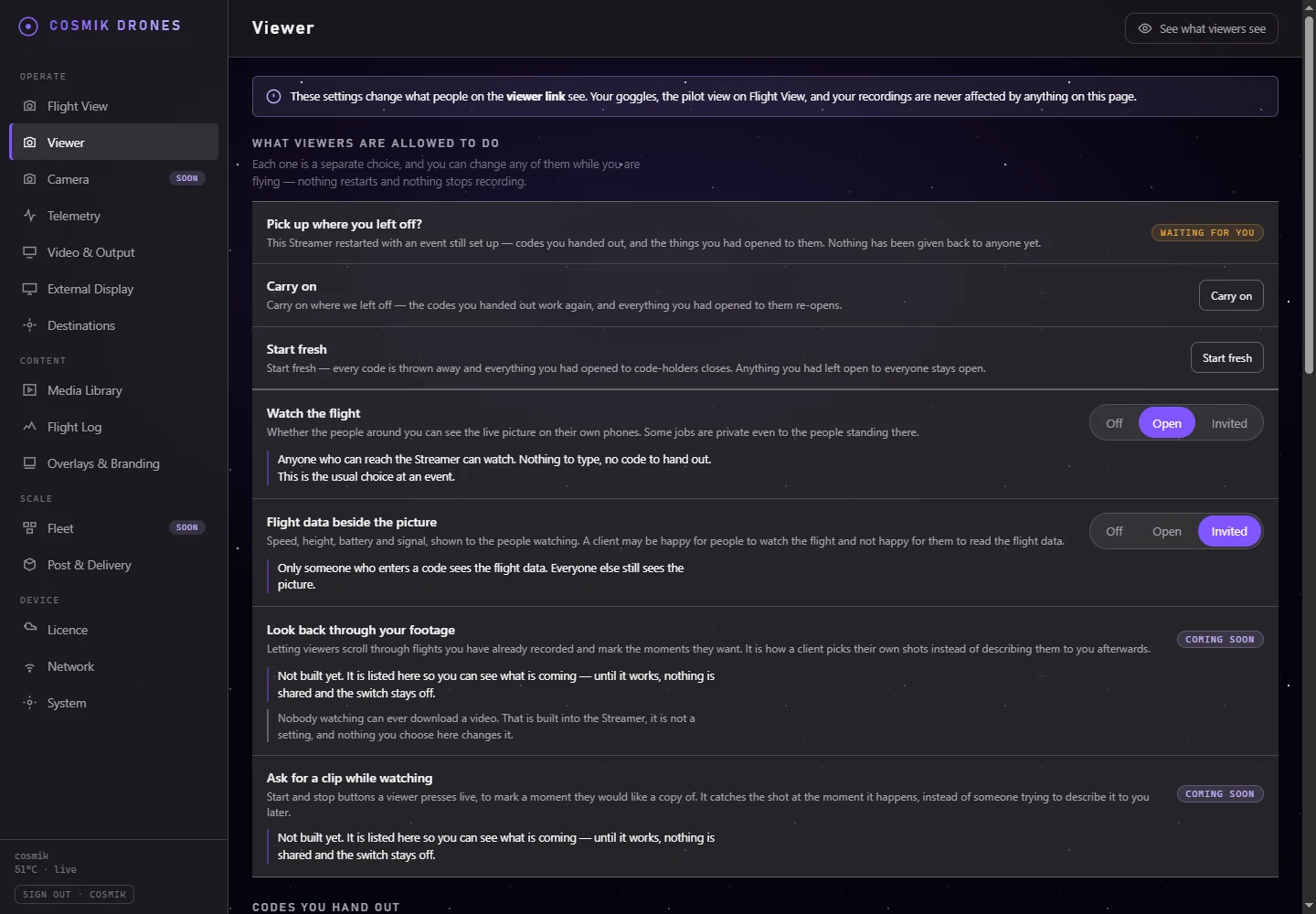
Open Console → Viewer. The first thing on that page is a short list of the things a viewer might be allowed to do, and each one is a separate choice with the same three answers.
| Answer | What it means |
|---|---|
| Off | Just you. Nobody else gets it. |
| Open | Anyone who can reach the Streamer. Nothing to type, no code. |
| Invited | Only people who enter a code you hand out. |
You can change any of them while you are flying. Nothing restarts, your recording does not stop, your goggles are not affected and your streaming destinations keep running. The change reaches viewers the next time their phone asks the Streamer anything — a second or two.
The choices
Watch the flight — whether people can see the live picture at all. Most of the time this is Open: you are at an event, you want people to watch, and nobody should have to type anything. Set it to Off for a job where even the onlookers should not see the feed — they get your waiting message instead, and everything else carries on exactly as before.
Flight data beside the picture — speed, height, battery and signal. Some clients are happy for people to watch and would rather the flight data was not on show. Turning this off takes nothing away from your own Flight View.
Look back through your footage — letting the people watching scroll through flights you have already recorded and mark the moments they want. It is how a client picks their own shots instead of describing them to you afterwards.
Save a photo of the picture — a button that keeps the frame on screen as a photo, either live or while looking back through your footage. Someone sees themselves, or their aircraft, and wants that one moment without asking you for the whole clip.
Ask for a clip while watching — start and stop buttons a viewer presses live, to mark a moment they would like a copy of. Every request arrives on your Media Library page, with their name and note attached, and you decide what to do with it.
Each of these five is set on its own, so a paying client can be given one thing and a bystander another.
Nobody watching can ever download a video. That is built into the Streamer. It is not a setting, there is no way to switch it on, and nothing on this page changes it.
Codes
The Invited answer is the reason codes exist. Set something to Invited and a Codes you hand out section appears underneath.
Make a code, give it a name you will recognise — "Ridgeline client", "crew" — and tick what it should let people do. Each code carries its own list, so a paying client can get one thing and a bystander another.
A code looks like K7M2-QPRT. There is no I, O, 0 or 1 in it, because you will be reading it out across a noisy venue. Capitals, lower case and the dash make no difference when someone types it.
Take it away stops that code working immediately — for everyone using it, on their very next tap. There is no waiting for anything to expire.
Guests
Anyone who uses a code shows up under Guests who have used a code. The Streamer knows nothing about them except that a phone or a laptop used one of your codes and when it last did — no name, no email, no phone number, nothing you would have to look after.
Remove takes that device's code away from it. It does not stop the person typing the code in again — if you want to shut a group out, take the code away instead.
After a restart
Your choices and your codes survive the Streamer being switched off. But if it restarts in the middle of an event, it will ask you before handing anything back:
- Carry on where we left off — the codes work again and everything you had opened to code-holders re-opens.
- Start fresh — every code is thrown away.
Anything you had set to Open comes straight back on its own. Only the code side waits for your answer, so a flat battery between two jobs can never quietly let yesterday's guests into today's.
Adjusting what viewers see
The rest of Console → Viewer controls the watching experience. Nothing on that page touches your goggles, your own Flight View, or your recordings — it only changes what people on the link see.
Picture
The picture adjustment — Brightness, Contrast and Colour — lives on the Camera page of the console, and it shapes everything you send out: the viewer page, the broadcast, and every destination pulled from it, YouTube included. Useful on an overcast day, or when the camera is exposing for a bright sky and the subject comes out murky on a phone screen.
Each slider starts at 0, meaning the picture exactly as the camera sent it, and Reset puts all three back. See Camera for the details.
What it never touches: your own goggles picture and your recordings — those always keep the original, unadjusted image. And it adds no delay for anyone: viewers get the adjustment in their own browser, and the outgoing streams get it on a path that was re-encoding anyway.
Everyone sees the whole picture
Viewers always see the complete frame, whatever shape their screen is. A 4:3 camera on a phone held upright, or a 16:9 camera on a tablet — the full picture is shown either way, never cropped to fill the screen.
There's nothing to configure here, and that's deliberate: cropping to fill a phone screen can hide well over half of a flight, with no hint to the viewer that anything is missing.
Getting to your own console
Tap the small gear in the corner of the viewing page, or add /console to the end of the address. Then sign in.
You'll be asked for your username and password — the ones you chose the first time you set the Streamer up. Your password is what keeps the settings yours: a guest who finds the gear finds only the sign-in page.
Bookmark /console if you like — but you never have to remember it.
What visitors can and cannot do
They can:
- Watch the live flight, full screen — if you have that set to Open, or they have a code
- See the flight data beside it — same, and it is a separate choice
- Go full screen and rotate their phone
- Leave and come back
They cannot:
- Download a video. Ever. There is no setting for it.
- Start or stop recording
- Change any setting
- See your recordings, streaming destinations or stream keys
- See your device's name, address or storage
- See another guest, or anything another guest has asked for
- Get past the sign-in page without your password
That last group holds whatever you choose above. Even with everything set to Open, a viewer still sees only the flight — never your device, your footage or your clients' names.
Tips for a shoot
- Show them once. Hand over the Wi-Fi password, let them open the link, then get on with flying.
- Ask them to keep the screen on. The page tries to stop phones sleeping, but some phones override that.
- Watching uses your Wi-Fi. Lots of viewers on a weak signal will affect quality for everyone. If you're expecting a crowd, a wired connection or a bigger network is worth it.
Coming soon
- Optional overlay — show your logo and signal strength on the visitor's view.
- Watching from outside your network — a private link over the internet.
See also: The Live View · Getting Started
Source: /docs/sharing-the-live-view.md